
What's new in Template Editor, templates, and reports in Tekla Structures 2026
Tekla Structures introduces a new way to produce modern, secure, and professional-looking Excel reports (.xlsx). Template Editor has several improvements for managing template layouts and data output.
In Template Editor, you can now align multiline text vertically to the middle, define custom line spacing, and use UTF8 encoding for textual templates. New controls also allow you to combine unique text values from sum rows, define row borders and row background color for Excel reports, and use the new FindAny() function in formulas. Additionally, the save location for new and edited graphical and textual templates has changed.
Create Excel (XLSX) reports
You can now create Excel (.xlsx) reports in Tekla Structures. The content and formatting of these reports is defined using an .xlsx.rpt template created with Template Editor, and an .xltx template created with Microsoft Excel.
This new functionality significantly simplifies and modernizes Excel reporting in Tekla Structures. Earlier, you had to use HTML-based templates or Organizer to export reports in the .xls format. Compared to these methods, the new Excel reporting method:
- Eliminates VBA macros: You no longer need to create and maintain complex, brittle VBA macros, which are difficult to edit and are increasingly restricted by corporate IT security policies.
- Provides full formatting control: Unlike the limited HTML-based report (
.xls.rpt), this method allows for fully pre-configured Excel templates (.xltx). You can define company logos, headers/footers, print settings, cell formats, and advanced table styles. The final report is a native, ready-to-use Excel file. - Improves security and compatibility: The resulting modern
.xlsxformat is the industry standard and avoids security filters that often block or quarantine older macro-enabled.xlsfiles. - Streamlines workflow: The process is more direct and intuitive, reducing the steps to get a polished, finalized report from Tekla Structures.
How it works
The new Excel export is triggered when you create a report from a template saved with the .xlsx.rpt file name extension. This method uses two key components: An Excel template file (.xltx) and a textual Template Editor template file (.xlsx.rpt).
-
Prepare the Excel template (.xltx).
In Microsoft Excel, design your report layout and save the file as an Excel template (.xltx) in one of the standard Tekla Structures folders (model, project, firm, or system).
The Excel template is a standard, pre-formatted Excel template file, containing the desired final layout (company logos, static text, cell formatting, formulas, print settings) and special placeholders to tell Tekla Structures where to insert data.
-
Prepare the Template Editor template (.xlsx.rpt).
In Template Editor, create a new textual template or modify an existing one and save the template with the .xlsx.rpt file name extension in your model or company standards folders.
The last line of the header may contain the column headers for the data rows to be used if column mapping needs to be done. If the columns are in the same order in both templates, mapping is not necessary. The row components contain the data to be exported. You can also apply some formatting properties to the template in Template Editor (background color, borders, font styles).
-
Export the report.
In the Report dialog in Tekla Structures, select a report template with the .xlsx file name extension and click Create from all or Create from selected. In the displayed Export to Excel dialog, select the Excel template (
.xltx) to use, define other export options, and click Export to generate the .xlsx file.
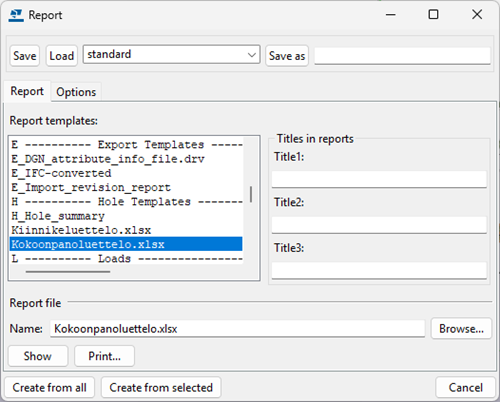
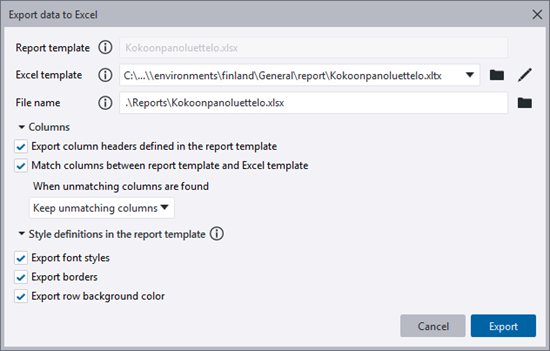
The report opens automatically in the associated viewer. For detailed instructions and option descriptions, see "Prepare and create an Excel (XLSX) report" in the "Plan and track projects" product guide.
Notes and limitations
- This new method is an addition, not a replacement. All old methods for creating Excel reports will continue to work.
- For complex formatting, like using Excel's built-in table styles for alternating row colors, we highly recommend you to define it within the .xltx Excel template, rather than relying on the basic formatting options in the
.rptfile. - Report logic, such as
ifstatements, is still handled within the Template Editor's value field formulas, not within the export process itself. - The curly brackets
{}are reserved for Tekla Structures attributes, avoid using them for non-attribute text.
TTSD-72774, TPLED-370
Template Editor improvements
Align text in value fields
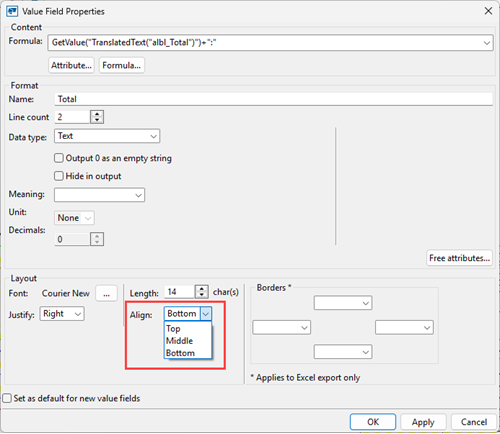
You can now align multiline text vertically to the middle in graphical and textual templates. Previously, multiline text could only be aligned to the top or bottom. Also, the Align control has been moved to the Layout area in the Value Field Properties dialog.
TPLED-328, TPLED-182, TPLED-343
Define line spacing
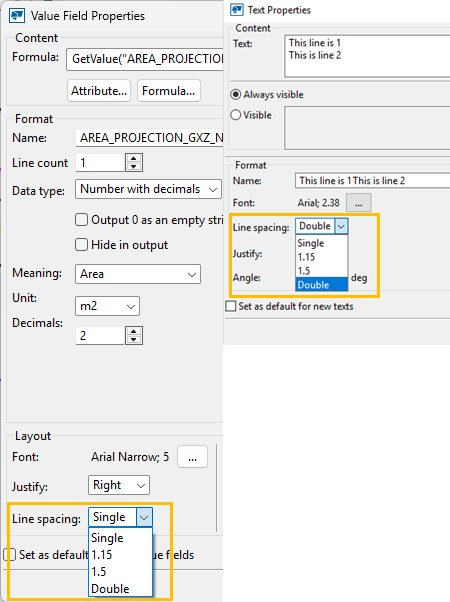
In graphical templates, you can now define line spacing for multiline texts and value fields with the new Line spacing setting. The available options are Single, 1.15, 1.5, and Double.
TPLED-151, TPLED-202
UTF8 support in textual templates
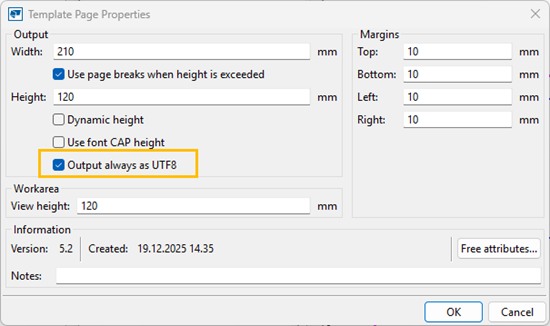
Textual templates can now be defined to output text always with UTF8 encoding using the new Output always as UTF8 setting.
TPLED-373
Combine unique text values from sum rows into single text value
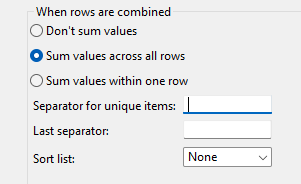
In textual and graphical templates, unique text values in value fields can now be combined into a single text value when rows are combined. Define a separator using the new Separator for unique items box in the Value Field Properties dialog. Use the new Last separator box to define the last separator individually.
The unique text values in value fields can now be combined and sorted into a single text value when rows are combined using the new Sort list control.
TPLED-382, TPLED-392
Define row background color and row borders
-
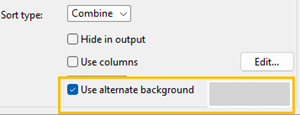
In graphical templates, you can now define an alternate row background color in the Row Properties dialog using the new Use alternate background control.
TPLED-197
-
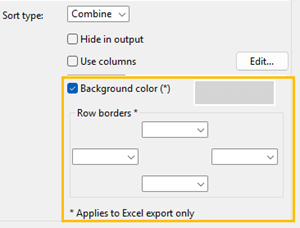
In textual templates, in the Row Properties dialog, you can now define the row background color using the new Background color control, and row borders for the entire exported row, not just cell-to-cell borders, using the new Row borders control. The background color and the row borders can be applied to Excel reports only.
TPLED-286, TPLED-286
Align pictures
In graphical templates, you can now define picture alignment in the Picture Properties dialog. The Horizontal and Vertical settings are only applied when the image file is resolved based on a rule and the resulting image is smaller than the original space reserved for it.
TPLED-324
Support for form feed in output
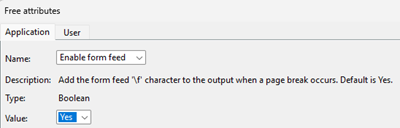
In textual and graphical templates, a new application type free attribute, Enable form feed, has been added to the Application tab in Free attributes in the Template Page Properties dialog. The default value is Yes. Form feed characters (\f) are enabled by default.
TTSD-63796
Match graphical template height to drawing height
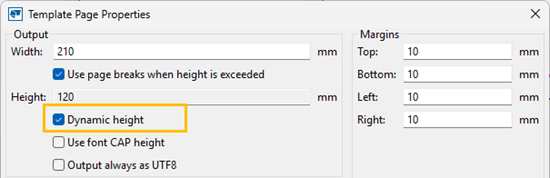
In graphical templates, you can now set the template height to match the drawing height using the new Dynamic height checkbox in the Template Page Properties dialog.
TPLED-198
Percentage available as meaning and as unit
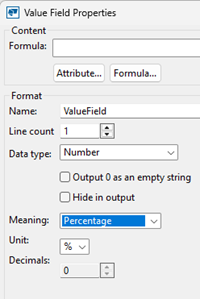
In graphical and textual templates, in the Value Field Properties dialog, Percentage is now available in the Meaning list, and '%' in the Unit list.
TPLED-291
New FindAny() function
In graphical and textual templates, the new FindAny() function returns the offset of a string or character and ends the search when any of the conditions are met. If the search does not reveal a match, -1 is returned. This works in both value field formulas and row rules.
Parameters: source string, string (for a character search) OR source string, substring, substring (for a substring search)
Example of character match
FindAny(GetValaue("DESCRIPTION"), "=; ")
This example searches for the first occurrence of '=', ';' or ' ' in a string and returns the offset when the first of those is found. The character count for the string starts at 0.
Example of substring search
FindAny(GetValaue("DESCRIPTION"), "X:", "Y:", "End", "Start")
This example searches for the first occurrence of the strings "X:", "Y:", "End" or "Start" and returns the offset when the first of those is found. The search for the strings is case-sensitive, so it will not find instances of "x:", "y:", "end" or "start".
TPLED-389
Location for graphical (TPL) and textual (RPT) templates
Graphical templates
New and edited graphical template files (.tpl) are now saved in the \templates folder under the current model folder. By default, Tekla Structures searches for the .tpl files from the root of the model folder and from the \templates folder under the model folder. Previously, graphical templates were saved in the environment folders.
Textual templates
New and edited textual template files (.rpt) are now saved in the root of the model folder and searched from there. Previously, textual templates were saved in the environment folders.
TTSD-73091