
Effective Lengths and Factors - review and copy
Graphically review effective lengths, and set or copy effective length factors for steel beams and columns, concrete columns, and walls. This is done in a Review View using the Show/Alter State command Effective Lengths and Factors attribute.
Overview
The Effective Lengths and Factors attribute is available for all Regional Design Codes.
The resulting information displayed graphically is then controlled by the Mode, Entity type, Variant and Restraint type/ Direction settings.
Mode
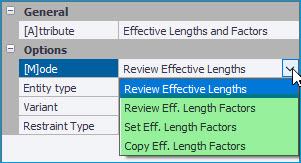 Review Effective
Lengths - this mode displays the actual effective length in terms of length
units and is applicable only to Steel beams and columns. The unrestrained length
value and units are displayed graphically along the member, at its middle, and
members are color coded in automated ranges given by the legend. “Cont. rest.”
text is displayed and the gray legend color is assigned for lengths to which
continuous restraint is applied.
Review Effective
Lengths - this mode displays the actual effective length in terms of length
units and is applicable only to Steel beams and columns. The unrestrained length
value and units are displayed graphically along the member, at its middle, and
members are color coded in automated ranges given by the legend. “Cont. rest.”
text is displayed and the gray legend color is assigned for lengths to which
continuous restraint is applied. Note the number of members within a particular range/ with a particular
setting is displayed in brackets in the legend.
Review Effective Length Factors - in this mode the view values, color coding and legend display the effective length factor values throughout the model for the specified entity type, variant and restraint type.
Set Effective Length Factors - Effective length factors can be set directly using this mode. For example the engineer may wish to set longer lateral effective length factors for some steel beams to account for such conditions as cantilevers and/ or destabilizing loads.
Copy Effective Length Factors - Effective length factors can be copied using this Mode. This works as follows:
-
With this mode selected and the desired Entity type and Restraint Type/ Direction set, you first select the entity to copy the factor from.
-
At this point the appropriate entities in the scene are then color coded and the legend is displayed to indicate; the source entity, entities with the same value as the source and those with different values which are valid target entities.
-
Then simply select the entity to apply the copied factor to - multiple lengths/ stacks/ panels can be selected for application in the usual manner.
Entity type
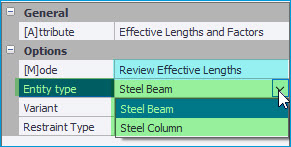
Entity type
sets the view information for the selected Entity type you wish to work
with, the types available in the list being governed by the selected Mode -
e.g. when the Mode is set to “Review Effective Lengths”, only Steel Beam and
Steel Column are available in the Entity type list as shown below.
Variant
Selecting a Variant makes it easier to focus on the entities and settings you want to work with. The drop list lists all the variants of the selected entity type contained in the model and is only displayed when the model actually contains entities of the selected type.
Restraint Type
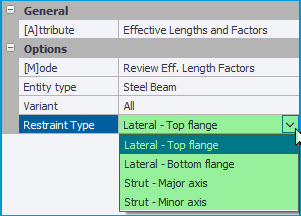
For steel beams and columns you select the Restraint Type you want to work with from the options available. These will depend on the regional code being worked to and reflect the restraint types available in the Properties dialog for the selected entity type.
For example, when working to Eurocodes, with the Steel Beam the entity type selected, they are ; Lateral - Top or Bottom flange and Strut - Major or Minor axis.
When working to AISC, for the same entity type they become, LTB - Top or Bottom flange, Compression - In Plane or Out of Plane, and Torsion.
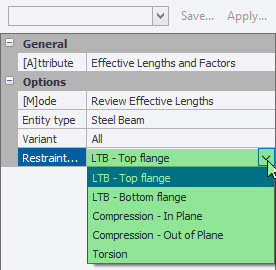
The view then updates to display this information accordingly with the selected options being shown in the view title text.
Review effective lengths
-
Open a view and switch the view
regime to
 Review View.
- On the Review ribbon, click Show/Alter State.
- Go to the Properties window.
- In the Attribute list, select Effective Lengths and Factors.
- Set Mode to Review Effective Lengths.
- Select the entity type and variant that you want to review.
- Select the restraint type that you want to review.
- Hover the cursor over individual members to see the details in a tooltip.
Review effective length factors
-
Open a view and switch the view
regime to Review View.
Set effective length factors
-
Open a view and switch the view
regime to Review View.
- On the Review ribbon, click Show/Alter State.
- Go to the Properties window.
- In the Attribute list, select Effective Lengths and Factors.
- Set Mode to Set Eff. Length Factors.
- Select the entity type and variant.
- Select the restraint type that you want to set.
- Enter the required factor.
- Click on an individual member, or box select multiple members to apply the factor.
Copy effective length factors
-
Open a view and switch the view
regime to Review View.
- On the Review ribbon, click Show/Alter State.
- Go to the Properties window.
- In the Attribute list, select Effective Lengths and Factors.
- Set Mode to Copy Eff. Length Factors.
- Select the entity type and variant.
- Select the restraint type that you want to set.
- In the model, click the member from which you want to copy the effective length factors.
- Click, or box around the target members to which you want to copy the effective length factors.
- Continue copying the effective length factors by clicking additional target members or press Esc to finish.