
Troubleshoot file access issues in Tekla PowerFab
Tekla PowerFab and Tekla PowerFab Go locate and open drawing files using the Drawing directory defined on the server installation in Default Directories.
Here you can check the required setup and find solutions for common access issues.
Ensure correct directory setup
To prevent most drawing access issues, ensure that the following prerequisites are met on your server and client machines.
Error: File not found
If a drawing fails to open or you receive a "file not found" error, the file either does not exist or its name or location is incorrect.
Incorrect file type opens
Tekla PowerFab attempts to open any file in the directory that matches the drawing name, regardless of the file extension.
The undesired file types may have ended up in the Drawing directory, if a user has batch-inserted files to the directory.
Be cautious when doing a batch insert, because all files in the selected folder are imported. Ensure that only the desired PDF files are in the folder that is selected for import.
Possible solution:
Check the Drawing directory and delete the undesired file types.
Keep only the type that you want Tekla PowerFab to open.
Drawing opens in Tekla PowerFab but not in Tekla PowerFab Go
When a drawing opens in Tekla PowerFab but not in Tekla PowerFab Go, this usually indicates a permission problem with the Tekla PowerFab Remote Monitor service on the server, which Tekla PowerFab Go relies on for file access.
-
Check the output for errors, specifically messages like
Unable to read from....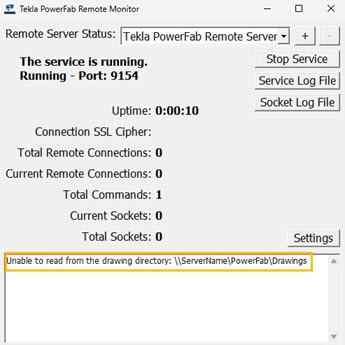
File opens on one machine but not on another
When a file opens on one machine but not on another may be due to client machines having different locations defined for the Drawing directory in Default Directories.
All clients must have the same location defined.
Possible solutions: