문서는 사전 릴리스 초안입니다. 콘텐츠는 공식 릴리스에 따라 변경될 수 있습니다.

Troubleshoot file access issues in Tekla PowerFab

Modified: 10 3월 2026 Tekla PowerFab 2026i

Troubleshoot file access issues in Tekla PowerFab

Tekla PowerFab and Tekla PowerFab Go locate and open drawing files using the Drawing directory defined on the server installation in Default Directories.

Here you can check the required setup and find solutions for common access issues.

Ensure correct directory setup

To prevent most drawing access issues, ensure that the following prerequisites are met on your server and client machines.

  • Ensure that the Drawing directory in Default Directories is configured according to our recommendations.

    See Directory descriptions and Default directories for server in Default directories.

    Once defined, Tekla PowerFab will handle all of the folder and file creation on its own.

    When a drawing is batch-inserted or imported with a PowerFab Exchange file, Tekla PowerFab automatically creates the required folder and file structure.

  • Verify file hierarchy.

    Tekla PowerFab expects drawing files such as PDF to follow this specific hierarchy within the defined directory:

    Job #/ 
    └─ Drawing Type/ 
       └─ Drawing Log Name/ 
          └─ Revision/ 
             └─ [DrawingName].pdf
  • Check Permissions.

    Ensure that the Windows User Account has the appropriate read/write permissions for the Drawing directory in Default Directories. Remote access may require a VPN connection.

Error: File not found

If a drawing fails to open or you receive a "file not found" error, the file either does not exist or its name or location is incorrect.

  1. Ensure that a PDF file exists in the Drawing directory.

    The file name must exactly match the drawing name in Tekla PowerFab. For example, if you are trying to open drawing "A17", an A17.pdf file must be found in the folder hierarchy.

    Note:

    Do not create the folder structure inside the Drawing directory manually.

    The folder names must match your job numbers, drawing types, and drawing log names exactly . Since there are many different ways to set this up, we cannot provide assistance with manual folder creation.

  2. Ensure that the Windows User Account has appropriate read/write permissions to the Drawing directory.

Incorrect file type opens

Tekla PowerFab attempts to open any file in the directory that matches the drawing name, regardless of the file extension.

If an undesired file type, for example, an NC1 file, opens instead of the PDF, a duplicate file with the same name exists.

The undesired file types may have ended up in the Drawing directory, if a user has batch-inserted files to the directory.

Be cautious when doing a batch insert, because all files in the selected folder are imported. Ensure that only the desired PDF files are in the folder that is selected for import.

Possible solution:

Check the Drawing directory and delete the undesired file types.

Keep only the type that you want Tekla PowerFab to open.

Drawing opens in Tekla PowerFab but not in Tekla PowerFab Go

When a drawing opens in Tekla PowerFab but not in Tekla PowerFab Go, this usually indicates a permission problem with the Tekla PowerFab Remote Monitor service on the server, which Tekla PowerFab Go relies on for file access.

  1. Open the Tekla PowerFab Remote Monitor on the server machine.
  2. Check the output for errors, specifically messages like Unable to read from....
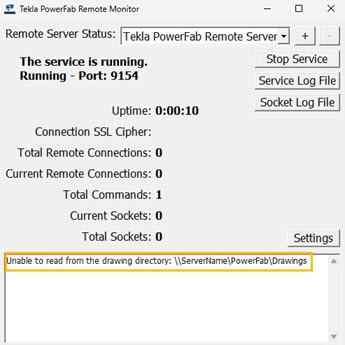
  3. If such errors are present, navigate to Windows Services.
  4. Locate the service running the Remote Monitor and grant it read/write permissions to the drawing location.

    To do this, configure the service to log on with a Microsoft Windows account that has the required permissions.

    1. Type Services into the Microsoft Windows search bar, then click on the Services app result
    2. Select Tekla PowerFab Remote Server > Properties.
    3. Go to the Log on tab.
    4. Select This account.

File opens on one machine but not on another

When a file opens on one machine but not on another may be due to client machines having different locations defined for the Drawing directory in Default Directories.

All clients must have the same location defined.

Possible solutions:

  • Ensure that you have set up Default Directories as recommended.

    The server must share out the Drawing directory, and all clients must have their drawing locations saved to the same location.

    See Default directories.

  • Ensure that all client installations of Tekla PowerFab are configured to use the same network location (the server share) for the Drawing directory in Default Directories.

    Ensure that the hierarchy explained above in Ensure correct directory setup is kept intact.

도움이 되었습니까?
전송
이전
다음