
Export in IFC format
You can export a Tekla Structures model or a part of the model in the IFC2x3, IFC4, or IFC4.3 format using the defined export settings. You can also export an IFC file and upload it directly to Trimble Connect. Ensure a successful export by considering the necessary prerequisites and known limitations.
Before exporting
-
Decide the IFC export hierarchy to use: the IFC export hierarchy from Organizer, IFC export hierarchy defined in the part UDAs, or the IFC export hierarchy defined in the project property UDAs. Using the export hierarchy from Organizer is described in the export settings section below.
For more information about defining export hierarchy in part UDAs, see Adjust object user-defined attributes for IFC export. For more information about defining IFC export hierarchy in the project properties, see Edit project properties.
- Check that the parts have known profiles.
- Define the IFC entities for Tekla Structures model objects. For more information, see Define IFC entities for Tekla Structures model objects.
- Modify the IFC property sets if necessary. You can also define new property sets.
- If you want to export the IFC file using a base point, define the base point. For more information, see Base points.
- To have pour objects and pour units
(from Tekla Structures 2018 onwards) in your model, set
XS_ENABLE_POUR_MANAGEMENTtoTRUEin the Advanced options dialog. - To control whether the bars created by rebar sets are exported in groups or as
individual bars, use the advanced option
XS_EXPORT_IFC_REBARSET_INDIVIDUAL_BARS. To export bars in groups, set it toFALSE, and to export bars as individual bars, set it toTRUE. The default value isFALSE.Note:In the IFC file 'Total number' always shows 1 for groups created by rebar sets, and 'Total weight' and 'Weight' show one bar weight. Use the
NUMBER_OF_BARS_IN_GROUPandWEIGHT_TOTAL_IN_GROUPattributes to export the values of the group to the IFC file. - To export B-rep objects as exact solids in the IFC2x3 export, set the advanced
option
XS_EXPORT_BREP_AS_EXACT_SOLIDtoTRUE. The default value isFALSE. If you export B-reps as exact solids, the IFC file size increases, and the export takes more time. - To get smooth edges to the export, you may need to set the advanced option XS_CS_CHAMFER_DIVIDE_ANGLE
to
10. - Add classification information to assemblies if needed, see Add classification information to assemblies.
- If you are exporting to AutoDesk Revit, see Tekla Structures Base point for coordination with Autodesk Revit.
- Read the limitations below.
Limitations in IFC export
- Edge chamfers are omitted from the exported IFC model. This is to enable better interoperability with plant design systems. If the geometry with edge chamfers is needed, you can set the IFC export type to B-rep separately for those objects in the object user-defined attributes dialog on the IFC export tab.
-
IFC2x3:
- Rebar assemblies do not work in the IFC2x3 export. For the IFC export of rebar assemblies, use the IFC4 export version.
- Pour unit export is not supported.
- Export flat wide beams as plates only works with the export types Coordination view 1.0 and Coordination view 2.0, but has no effect in the export types Steel fabrication view or Surface geometry. The workaround is to define IfcPlate as the IFC entity for beam objects.
Export IFC file
-
On the
File menu, click .
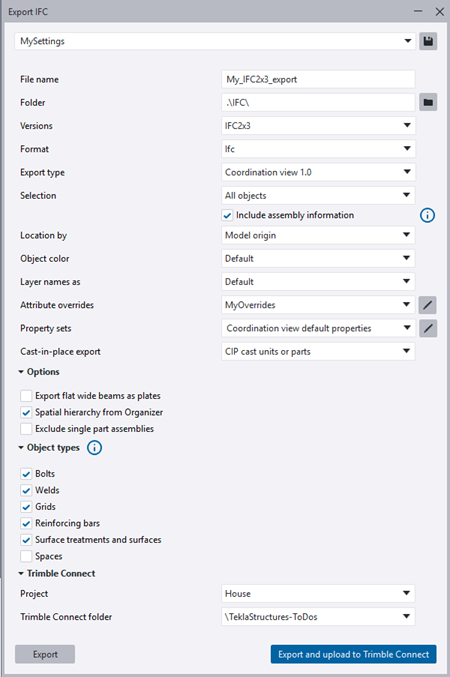
-
If there are predefined
export settings available, load the predefined export settings from the list
at the top.
The predefined export settings files are located in the environment folders.
If there are several settings files listed, you can start writing the name of the desired settings file to show only the desired file on the list, and then press Enter to select it.

- Use Attribute overrides to customize certain IFC entity attributes, such as Name, Description, or Tag, by specifying export values tailored to meet project specifications, standards, and customer requirements.
You can specify a Tekla property, a user-defined attribute, or a custom property as the export value. The essential attributes, such as GlobalId, are hard-coded.
-
To define a new set of attribute overrides, select <new> and click
 .
. -
To modify an existing set of attribute overrides, select the name from the list and click
. -
To use the predefined values, select the default value <none>.
For details about creating attribute overrides, see Create and modify attribute overrides.
-
-
In Property sets, define a property set to use in the export.
The property set selection may change when you change the Export type.
- To use a default property set, select the property set from the Property sets list.
- To modify an existing property set, select the property set from the
list and click
 .
.For instructions on modifying property sets, see Modify property sets for IFC export.
-
To define a new property set, select <new> and click
. For instructions on creating new property sets, see Create property sets for IFC export.
Tekla Structures exports the IFC file into the specified folder. After a successful export, a message box is displayed. From this message box you can open the folder where the exported IFC model is stored, or view the log file in a browser. The log file gives detailed information about the export process, exported entities, and the errors occurred during the export. You can also check the exported IFC model by inserting it as a reference model in the original Tekla Structures model.
Instead of exporting an IFC file, you can export an IFC file and upload it directly to Trimble Connect. See below for instructions.
Export IFC file and upload to Trimble Connect
You can directly upload the exported IFC file to Trimble Connect, to the specified Trimble Connect project and folder.