
Switch between model views
You can easily switch between all open views while modeling in Tekla Structures. You can also switch between the 3D and plane view to examine the current view from different perspectives, switch between plane views, or switch between view angles to show the model in different angles.
You can find all the created model views in the Model views side pane. Tekla Structures only saves the named views when you exit the model.
Switch between open model views
To switch between open model views, do one of the following:
-
In the Model views side pane, double-click a view to bring it to the front as the topmost of all visible views, or right-click a view and select Bring to front.
-
Use the keyboard shortcut Ctrl+Tab to cycle through the open model views.
-
Click Window in the top right corner of the Tekla Structures ribbon and select a model view from the list.
The views are listed in alphabetical order.
-
Right-click a model view, then select Next window from the pop-up menu.
The next open view becomes active.
Switch between 3D and plane view
Use the Switch to 3D or plane command to examine the current model view from different perspectives.
On the View tab, click  Switch to 3D or plane.
Alternatively, use the keyboard shortcut Ctrl+P.
Rotate model view from 3D to a selected plane view
Use the navigation control axes in the local coordinate system symbol to rotate the current model view from 3D to a selected plane view.

Click the selected navigation control axis to rotate the model view around the current rotation point to the selected 2D plane. To check the model using a different view, click another control axis in the symbol.
To return to the 3D view, rotate the model using your mouse.
Switch between plane views
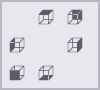
Use the View angle command to rotate the model view or the selected object to a plane view.
-
Select a model view or an object, and on the contextual toolbar click
 View angle.
 -
Select a top, back, right, bottom, front, or left view.
-
To return to the original 3D view, click the empty button in the middle of the view angle options.