Fit beams and columns

Tekla Structures
修改时间: 14 11月 2024
2026
Tekla Structures

Fit beams and columns

You can use the Fit beams and columns connection to connect two beams, two columns, or a beam and a column with fittings and cuts only.

The fittings and cuts that connect the parts can be placed in several ways. You can define that a gap is created between the parts, and use welds to connect them.

The table below shows examples of the connections.

Example Description

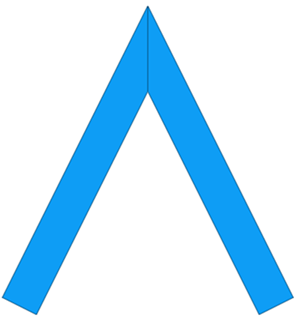
Mitre connection

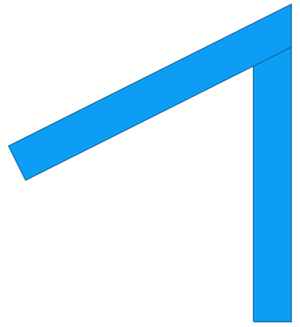
Fit both profiles

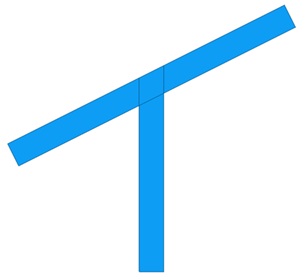
One of the two profiles is not cut

  1. Select the Fit beams and columns component in the Applications & components catalog.

  2. To change the default properties, open the Fit beams and columns component dialog and modify the properties on the Settings tab.

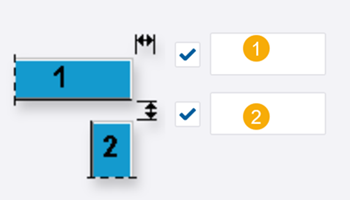
  3. Define the gap size between the main part and the secondary part. If you do not enter any value, a gap is not created.

    Description

    1

    Cut offset of the main part

    2

    Gap between the main part and the secondary part

  4. Select the fitting type.

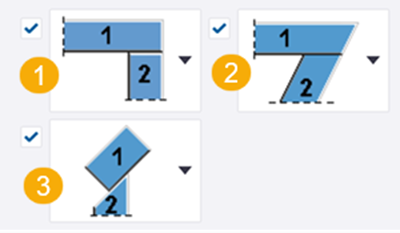
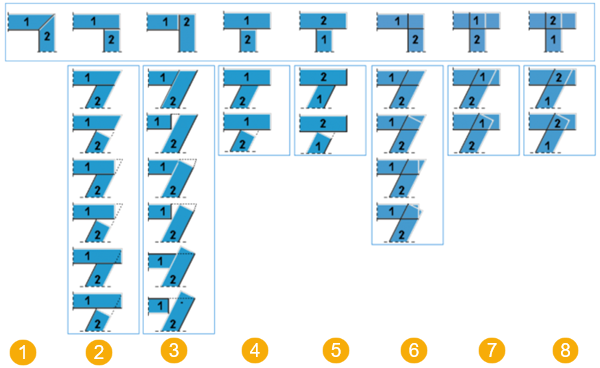
    The type you select in list (1) defines which fitting methods are available in list (2). For the fitting type options, see the image below.

    (3) When both the main part and the secondary part are skewed, select whether the fitting is created in the direction of the web or the flange.

    The fitting type options are as follows:

    Description

    1

    Mitre

    2

    Secondary part is fitted to the main part, both parts are fitted.

    3

    Main part is fitted to the secondary part, both parts are fitted.

    4

    Secondary part is fitted to the main part, the main part is not fitted.

    5

    Main part is fitted to the secondary part, the secondary part is not fitted.

    6

    Secondary part is fitted with an overlap on the main part, both parts are fitted.

    7

    Secondary part is fitted with an overlap on the main part, the main part is not fitted.

    8

    Main part is fitted with an overlap on the secondary part, the secondary part is not fitted.

  5. Define the maximum gap size between the main part and the secondary part. To do this, select the following fitting type:

    Select one of the following:

    • Use default

      The secondary part is fitted perpendicularly.

    • Method by threshold

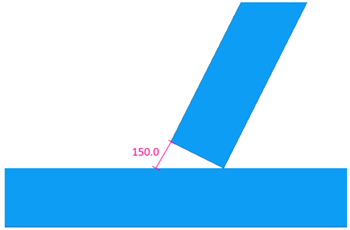
      Define the gap threshold distance. If the distance between the main part and the secondary part is shorter than the value you define, the secondary part is fitted perpendicularly.

      In the example image below, the distance is 150.0, while the value you have defined is 200.0.

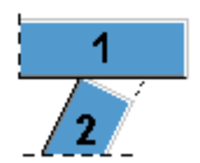
      If the distance is greater than the threshold value you define, the fitting on the secondary part is aligned with the main part.

      In the example image below, the defined distance is 0.

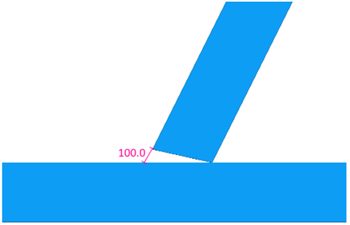
    • Define gap

      The value you define is used as the distance to fit the secondary part.

      In the example image below, the defined distance is 100.0.

  6. Select whether the Main part (1) and Secondary part (2) are fitted, or cut with a line cut.

  7. In Connect parts, select how the parts are connected:

    • No: Parts are not connected.
    • Cast unit: The secondary part is added to the main part cast unit.
    • Sub assembly: The secondary part is added to the main part cast unit as a sub-assembly.
    • By welding: The secondary part is welded to the main part.

      When you select By welding, you can define the weld properties on the Welding tab.

  8. On the Welding tab, define the weld properties.

    For detailed information on the weld properties, see the Weld properties section in Create welds.

  9. Click OK.

  10. In the model, select the main part (beam or column).

  11. Select the secondary part (beam or column).

    The connection is automatically created when you select the secondary part.

这些内容是否有用?
提交
上一步
下一步