Change the model background color
You can easily change the model background color.
- On the View tab, click Color theme.
-
Select one of the available
background color options.
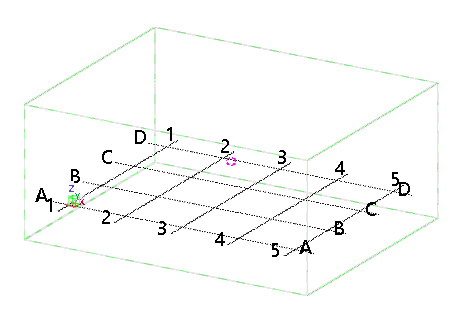
Option Example For white background in all model views: Light

The grid color is adjusted according to the background color.
Grid line labels are set to black.
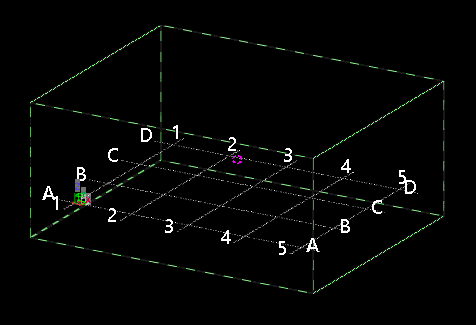
For black background in all model views: Dark

The grid color is adjusted according to the background color.
Grid line labels are set to white.
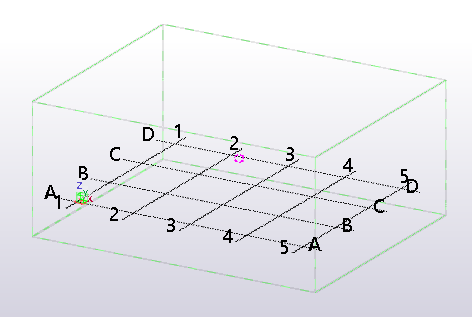
For the default gradient background in all model views: Tekla default

The grid color is adjusted according to the background color.
Grid line labels are set to black.
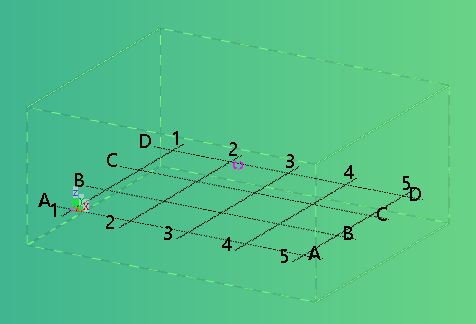
For your own background color in all open model views: Advanced Use the
XS_BACKGROUND_COLOR1,XS_BACKGROUND_COLOR2,XS_BACKGROUND_COLOR3, andXS_BACKGROUND_COLOR4advanced options to set the background color.Use RGB values on a scale from 0.0 to 1.0. You can control the color of each corner of the background separately. To use a single-colored background, set the same color code for all four corners of the background.
For example, for green background color, set the advanced options to
0.1 0.6 0.60.5 0.9 0.50.1 0.6 0.60.5 0.9 0.5.
Click OK to save the changes.
Close and reopen the view to see the changes.
- If you want to change the drawing background color to black, use the advanced option XS_BLACK_DRAWING_BACKGROUND.