Create check dimensions
In integrated dimensioning, you can create additional dimensions to check the accuracy of dimensions.
To create check dimensions, do any of the following:
|
To |
Do this |
Number in the image |
|---|---|---|
|
Create check dimensions between outermost work points. |
In the Dimensioning dialog box, click and set Main part work points to Yes. |
(1) |
|
Create check dimensions between outermost bolts. |
In the Dimensioning dialog box, click and set Extreme bolts to Assembly or Main part. |
(2) |
|
Create check dimensions from outermost work point to first bolt. |
In the Dimensioning dialog box, click and set Extreme bolts to Assembly or Main part and Extreme bolts to work points to Yes. |
(3) |
|
Create horizontal and vertical check dimensions between the work points in a skewed brace. |
In the Dimensioning dialog box, click Position dimensions and set Main part skew position to Yes. |
(4) |
|
Create check dimensions between the work points, such as the intersections of main and neighbor part reference lines. |
In the Dimensioning dialog box, click Position dimensions and set Position bolts to or Position parts to Working points or Both. |
|
|
Create check dimensions to the bolt hole locations in the main part. |
In the Dimensioning dialog box, click Position dimensions and set Main part bolt position to On. |
|
|
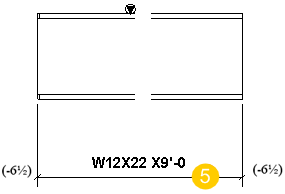
Create knock-off dimensions. |
In the Dimensioning dialog box, click Part dimensions and set Knock-off dimensions to On. |
(5) |