
Additional methods for copying objects in models and drawings
You can copy objects in Tekla Structures in a number of different ways. When you copy an object, Tekla Structures copies all objects connected to it, including the components.
If you do not wish to use copying commands that copy the selected objects to clipboard, there are additional copying methods available.
Copy objects in a model or in a drawing by specifying a distance from origin
You can copy objects to a new position in the model or drawing by specifying a distance from the origin. Use the Enter a Numeric Location dialog to specify the distance.
Copy objects in a model or in a drawing using drag-and-drop
You can copy objects by using drag-and-drop.
- Select the objects you want to copy.
In drawings, you can copy annotations, sketch objects, and grid labels by dragging. To copy grid labels, first select the grid label and then either activate the
 Select grid line selection switch or select the grid label handle.
 For more information, see Drag, reshape, and resize drawing objects.

- Hold down the Ctrl key and drag the objects to a new location.
In a model, the point you start dragging from (center, corner, or middle point) affects the object's alignment in the new location.
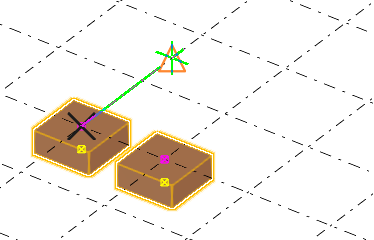
Tekla Structures copies the objects:

Copy objects linearly in a model or in a drawing
In the model or drawing, you can create multiple copies of an object in the same linear direction.

- Pick two points, or enter the coordinates in the dX, dY, and dZ boxes.
You can also use a formula to calculate the x, y, and z displacements. For example:

In drawings, dZ is not defined.
Copy objects from another model
An alternative method for copying model objects from another model is to use phase numbers. Note that Tekla Structures copies secondary parts from the model only if they belong to the same phase as their main part. This also applies to component objects.

Note that you can use the Copy, To another object,To another plane, or All content to another object commands to copy model objects from model to another. For more information, see Copy model objects and drawing objects using the clipboard.
Note:
If you copy pour breaks from another model, the copied pour breaks automatically adapt to the target model. Always check that the copied pour breaks have adapted correctly.