Add and modify text in drawings
You can add several lines of plain text or formatted rich text in an open drawing inside a text object using the current text properties. You can modify the text and its properties after adding the text object. Rich text content can also be formatted in a built-in text editor.
Tekla Structures also allows you to link plain text or rich text from files outside Tekla Structures. For more information, see Add text file links in drawings.
Add text in an open drawing
-
You can load predefined text
properties and search for properties:

-
In the Format list, select whether you want to add Plain text or Rich text.
-
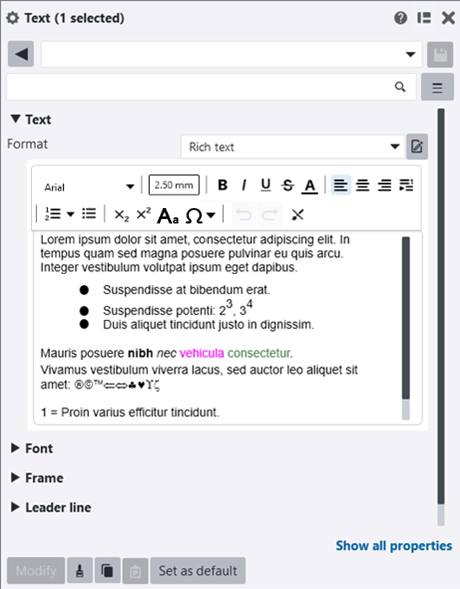
Type the text in the
property pane text editor.
You can add a line break by pressing Enter.
If you selected Rich text, use the controls on the toolbar to format the text. The toolbar contains all basic rich text formatting options. You cannot create tables in Text objects.
To add character symbols, click the character symbol icon
 , and a list of the last 5 inserted character symbols is displayed as well as a list of common character symbols. To display the Character symbols dialog to select other available character symbols, click More.
To change the zoom level, hold down the Ctrl key and scroll the mouse wheel, or use the zoom level control on the toolbar.
To change the text case, select the desired text from the visual text editor, click the
 Change case button on the toolbar, and select Sentence case, lowercase, or UPPERCASE.
If the text content limit is exceeded, a red border appears around the editor window with an exclamation mark. When you hover over the exclamation mark, the tooltip "Text content limit exceeded. Please reduce the amount of text to save changes." appears.
To edit text in the full Text editor, first add the text in the drawing and then click the
 Open full text editor button next to the Format list. See "Edit text in full Text editor" below for more information. You can edit both plain text and rich text in full Text editor, but the formatting toolbar is not available for plain text. The toolbars in the property pane text editor and in the full Text editor have the same formatting options and controls.
The space between lines comes from the advanced option XS_MARK_LINE_SPACE_FACTOR.
-
Add a Frame around the text and select the Frame color.
You can use a standard color or a custom RGB color.
To add a frame, select one of the following frame options: Rectangular
 Line
Line Round
Round Circle
 Diamond
 Hexagon
 Triangle
 Sharpened
 -
In Background, select one of the following:
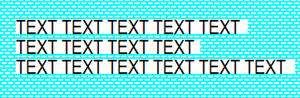
Opaque hides the area in the drawing that is covered by the text:
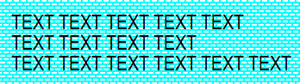
Transparent shows the area in the drawing that is covered by the text so that the linework is shown:
-
Select the Leader line type and the leader line arrow type, height, and length.
The leader line options are:
 No leader line
 Leader line
 Along line or leader line
 Along line
 Inside part along part
 -
Adjust the placing
settings:
- Select one of the Alignment options: Left, Center, Right or Leader line.
- In Rotation, change the rotation of the text.
- To exactly place the text in the position you pick, and keep it
there, set the Placing method button to Fixed.
Free allows Tekla Structures to search for the first suitable location for the text.
-
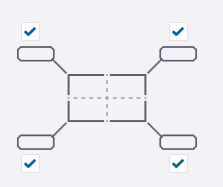
In Position, define the areas where Tekla Structures searches for a position to place the text. This option can only be adjusted when Placing method is set to Free.
-

Distance s (search margin) is the empty margin that you want to leave around the text.
Distance d min (minimum distance) is the minimum distance of the text from the part.
Edit text in full Text editor
If you selected to add rich text, you can edit and format the text in the Tekla Structures full Text editor.
To edit text in the full Text editor
- To open the full Text editor, first add the text in the drawing and then click the Open full text editor button next to the Format list.
The full Text editor window is displayed.
If you have already added text in the drawing, you can open the text in the full Text editor by double-clicking the text.
For plain text, the default font size in the full Text editor at 100% zoom is defined by the Text object's font size set in Font height in the property pane:
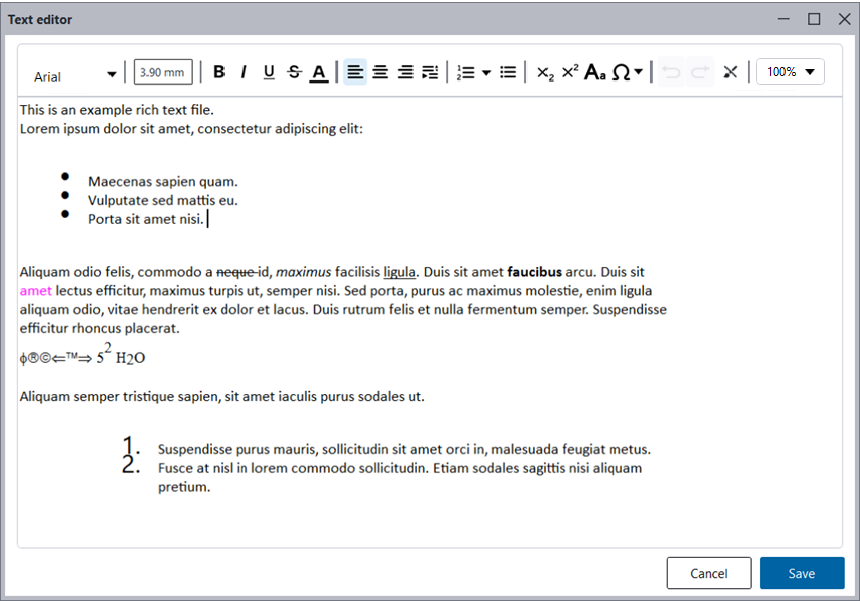
- While typing the text, use the controls on the formatting toolbar to apply formatting in the text.
The following formatting options are available for rich text:
- Font name and height
- Text color, bold, italic, underline, strikethrough, subscript, superscript
- Paragraph edits: left, center, and right alignment, left and first line indent, line spacing, space after paragraph, default tab size
- Text case: To change the text case, select the desired text from the text editor, click the Change case button on the toolbar, and select Sentence case, lowercase, or UPPERCASE.
- Character symbols: To add character symbols, click the character symbol icon , and a list of the last 5 inserted character symbols is displayed as well as a list of common character symbols. To display the Character symbols dialog to select other available character symbols, click More.
Only character symbols that are compatible with the current Tekla Structures and Windows non-Unicode code page settings are shown.
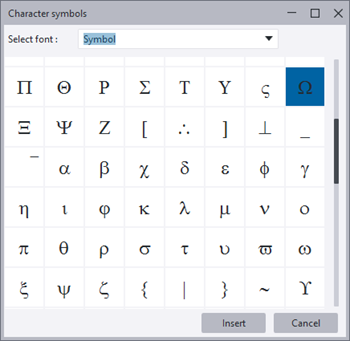
- Lists: bulleted, numbered, and lettered, customizable start number or letter
- Undo and redo edits
- Clear formatting
- Zoom level control (Ctrl+mouse wheel)
- Keyboard shortcuts for cutting, copying, and pasting
You cannot add tables in Text objects.
If the text content limit is exceeded, a red border appears around the full Text editor window, displaying the message: "Text content limit exceeded. Please reduce the amount of text to save changes."
The text is updated in the Text object in the drawing according to the changes you made in the text editor. The text also gets updated in the Text property pane text editor.
Modify text properties
Recover lost text changes in text objects
-
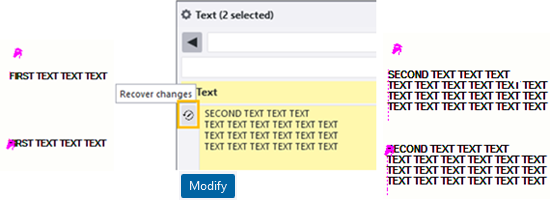
In the Text property pane, review the text changes by hovering over the Recover changes
 button next to
the Text box.
button next to
the Text box.
-
Click the Recover changes button.
-
Click Modify.
You can select and recover multiple identical text objects. Also, changes of each individual text objects are preserved in a cache and can be recovered for the respective text objects.
Delete unnecessary texts
- Select the text object in the drawing.
- Press Delete on the keyboard, or right-click and select Delete.
Examples
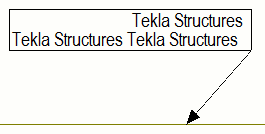
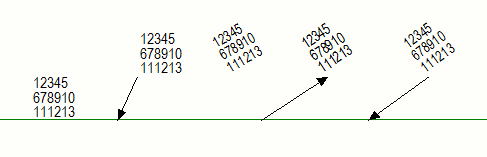
See below for examples of the different text options. From left: Text; With leader line; Along line; Along line, arrow at end; and Along line, arrow at start.
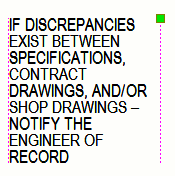
The text object gets a handle when word wrapping is activated, and you can drag the handle to change the text object size:
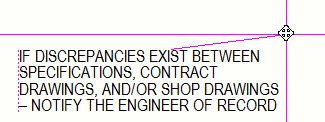
In the following example, the text is aligned to the leader line start: