
Add and modify text in drawings
You can add several lines of text in an open drawing inside a text object. For the text, you can select the desired color, height, font, angle, frame, and leader line arrow type, apply text wrapping, and align the text as required. You can also modify the text and its properties after adding the text object.
Add text in an open drawing
-
You can load predefined text
properties and search for properties:

-
Add a Frame around the text and select the Frame color.
You can use a standard color or a custom RGB color.
To add a frame, select one of the following frame options: Rectangular
 Line
Line Round
Round Circle
 Diamond
 Hexagon
 Triangle
 Sharpened
 -
In Background, select one of the following:
Opaque hides the area in the drawing that is covered by the text:
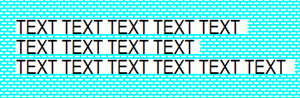
Transparent shows the area in the drawing that is covered by the text so that the linework is shown:
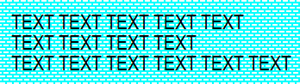
-
Select the Leader line type and the leader line arrow type, height, and length.
The leader line options are:
 No leader line
 Leader line
 Along line or leader line
 Along line
 Inside part along part
 -
Adjust the placing
settings:
- Select one of the Alignment options: Left, Center, Right or Leader line.
- In Rotation, change the rotation of the text.
- To exactly place the text in the position you pick, and keep it there, set the Placing method button to Fixed.
Free allows Tekla Structures to search for the first suitable location for the text.
-

In Position, define the areas where Tekla Structures searches for a position to place the text. This option can only be adjusted when Placing method is set to Free.
-
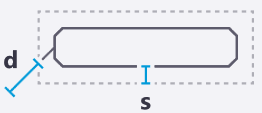
Distance s (search margin) is the empty margin that you want to leave around the text.
Distance d min (minimum distance) is the minimum distance of the text from the part.
Examples
See below for examples of the different text options. From left: Text; With leader line; Along line; Along line, arrow at end; and Along line, arrow at start.

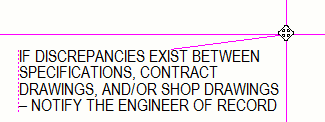
The text object gets a handle when word wrapping is activated, and you can drag the handle to change the text object size:
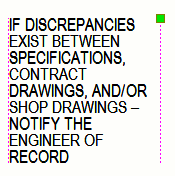
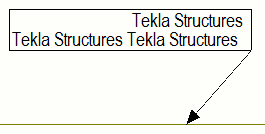
In the following example, the text is aligned to the leader line start:
Useful tips
-
In addition to using the text tool, you can add texts as links from .txt or .rtf files. This allows you to use more sophisticated formatting of the text, and add tables, for example. For more information, see Add links to rich text files.
-
You can add symbols in the texts, see the support article "How to insert symbols and special characters" for more information.
- Some special characters, like the diameter symbol, can be copied from the Windows character map. If you cannot use a number pad to use the Alt + xxx shortcuts, copy the needed character from the map and paste them in your text. You can also search and copy most symbols in Online Character Map link.
- To add text in superscript, see Add text in superscript.
- If some symbols are not displayed correctly, you may need to change your locale: "Ø Phi symbol with (Alt +0248) turns O in drawings"
Modify text properties
- To modify the text properties, click the text object in the drawing. If the property pane is not open, double-click the text. If you want to modify several texts, hold down Ctrl and click the text objects.
- Modify the properties.
If you have selected several texts, the properties that have different values have the text Varies. You can select another value from the list.
- Click Modify to apply the changes in all selected texts.
Recover lost text changes in text objects
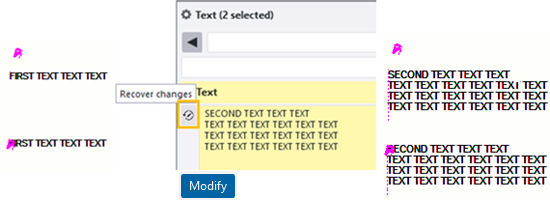
If are modifying the text of a text object in the property pane and lose your changes by clicking elsewhere in the drawing, you can recover the text changes.
- In the drawing, select the text object again.
- In the Text property pane, review the text changes by hovering over the
Recover changes
 button next to the Text box.
 - Click the Recover changes button.
- Click Modify.
You can select and recover multiple identical text objects. Also, changes of each individual text objects are preserved in a cache and can be recovered for the respective text objects.
Delete unnecessary texts
- To delete a text object, select the object and press Delete on the keyboard, or right-click and select Delete.