
Tapered frame comonor (S53)
Tapered frame comonor (S53) creates a built-up frame or parts of it. You can control the taper and the size of the spliced material.
Parts created
-
Built-up columns with base plate and end plate (2)
-
Built-up beams with end plates (2)
-
Built-up beams with end plates (2)
Use for
|
Situation |
More information |
|---|---|
|
|
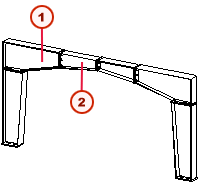
Built-up frame. 1 Beam 1 2 Beam 2 Use the following options:
|
|
|
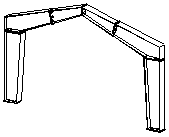
Sloped built-up frame. Use the following options:
|
|
|
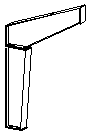
Only half of the frame. Use the following options:
|
|
|
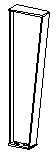
Built-up column with base plate and end plate. Use the following options:
|
|
|
Built-up beam (1) with end plates. Use the following options:
|
|
|
Built-up beam (2) with end plates. Use the following options:
|

Limitations
Creates frame only in global x direction. Y direction is not possible.
Before you start
Ensure that you have a point to pick.
Picking order
-
Pick the position of the column.
-
Tekla Structures creates the frame.
Picture tab
Use the Picture tab to define the column dimensions and location relative to the picked points.
Parts tab
Use the Parts tab to define the plate properties.
|
Option |
Description |
Default |
|---|---|---|
|
t, b, h |
Define the thickness, width, and height of the part. |
|
|
Pos_No |
Define a prefix and a starting number for the part position number. Enter the assembly position number on the second row. |
The default part start number is defined in the Components settings in . |
|
Material |
Define the material grade. |
The default material is defined in the Part material box in the Components settings in . |
|
Name |
Define a name that is shown in drawings and reports. |
Column tab
Use the Column tab to define the column dimensions.
Column 2 tab
Use the Column 2 tab to define the base plate bolts.
Column 3 tab
Use the Column 3 tab to define the end plate bolts between column and beam 1.
Beam 1 tab
Use the Beam 1 tab to define the beam 1 dimensions.
Beam 1_2 tab
Use the Beam 1_2 tab to define the end plate bolts between beam 1 and beam 2.
Beam 2 tab
Use the Beam 2 tab to define the beam 2 dimensions.
Beam 2_2 tab
Use the Beam 2_2 tab to define the end plate bolts at the hip between beam 2 and beam 2.
Welds
Click the link below to find out more: