Record an RFI response

Modified: 18 11월 2024 Tekla PowerFab 2026

Record an RFI response

When an appropriate response to a request for information (RFI) is received, it is important to update the RFI so that the missing information is recorded and everyone knows that it has been answered appropriately.

On the Summary tab, you can select the Outstanding RFIs.

  1. To access the RFI dialog, do either of the following:
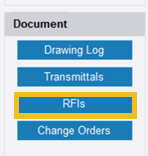
    • In the Project dialog, click RFIs.

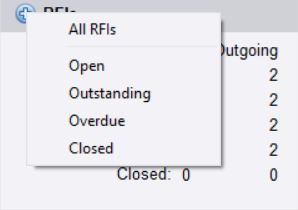
    • On the Summary tab , click + in the upper-right corner of the RFIs section, and select which requests for information you want to see.
    The RFI dialog opens.
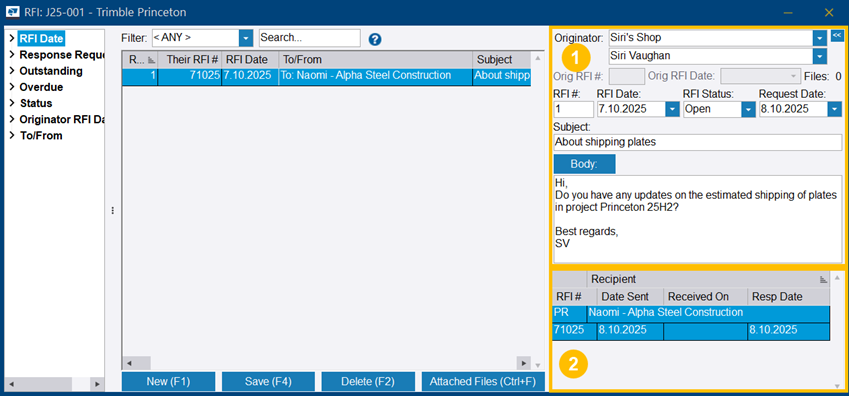
    (1) RFI properties

    (2) Recipient table

  2. If you want to add an attachment, do the following:
    1. Click Attached Files.

      The Request For Information dialog opens.

    2. Click New.

      Document Index - Add Document Reference dialog opens.

      See Attach files to an RFI.

    3. In the Request For Information dialog, select the drawing that you want to attach.
    4. In Attachment Type, select Response.
    5. Click Save and close the Request For Information dialog.

      You return to the RFI dialog.

  3. To record the response, do the following:
    1. Click the recipient table (2) to open the Recipients dialog.
    2. Select the Response Date.
    3. In Response Details, type the response.
    4. Click Save.

      You return to the RFI dialog.

  4. In RFI Status, select Closed.
  5. To update the RFI, click Save.
도움이 되었습니까?
전송
이전
다음