You can define the markup percentages for an individual estimate. There are three
levels of markup: overheads, administration, and profit.
You are in the Estimating module. You are either creating a new job or modifying an existing job in the
Estimate Job Edit dialog.
-
Click Markups.
The Markup dialog opens.
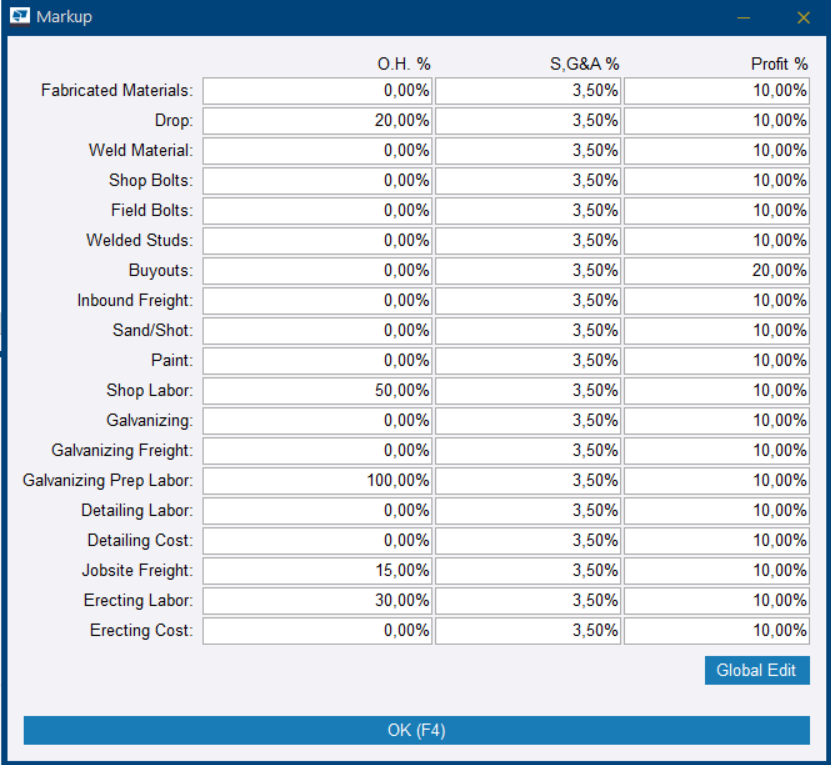
The list on the left:
Cost groups. Every cost that you have applied to the estimate is assigned to
one of these groups.
O.H. %: Overheads percentage
S,G&A %: Sales, general, and administration
percentage
Profit %: Profit percentage
-
Modify the markup percentages in
either of the following ways:
| To |
Do this |
| Add or modify percentages one by one |
- Click the field that you want to modify.
- Type a new value.
The markups are cumulative from left to right.
|
| Apply the same markup percentage to multiple items at
once |
- In the lower-right corner of the dialog, click
Global Edit.
- Click the arrow buttons to move the items that you want to modify to the Included list.
- Click
OK.
- Type the markup percentage that you want to apply to
all the selected items.
- Click
OK.
The markup percentages of the selected items are
updated.
|
-
Click
OK.
The Markup dialog closes.
-
Once you have finished modifying
the properties, click Save.
The changes you made for the job are saved.
You return to the Select Estimating Job dialog.
