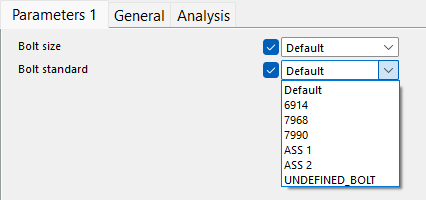
Example of a variable formula: Define the bolt size and bolt standard
This example shows how to create two parametric variables that define the bolt size and bolt standard.
In this example you will use the value types Bolt size and Bolt standard, which work together, and are linked to the bolt catalog. They have a fixed naming format: Px_diameter and Px_screwdin. Do not change the fixed name.
To show values for these in the custom component’s dialog, x must be the same for both, for example, P1_diameter and P1_screwdin.
-
On
the Custom component editor toolbar, click the Display variables
 button.
The Variables dialog opens.
-
Modify the second parametric variable as follows:
-
In the Name box, change the prefix of the second variable so that the prefixes
for the two variables are the same.
In this example, the prefix is P1.
 Note:
Note:The bolt size and bolt standard variables must always have the same prefix, otherwise they do not work.
-
In the Name box, change the prefix of the second variable so that the prefixes
for the two variables are the same.
-
Link the parametric variables to the Size and Bolt standard properties of the bolt group:
-
Enter
P1_screwdin after the equals sign, and then press
Enter.
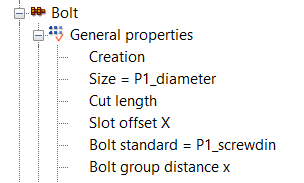
-
Enter
P1_screwdin after the equals sign, and then press
Enter.
-
Select the custom component in
the model, and open the custom component dialog.
The option to define the bolt size and bolt standard is visible in the custom component's dialog.