
View material database
You can view and manage the materials that have been added to the Tekla PowerFab material database in the Shape/Grade/Size Maintenance dialog. You can add new materials, and modify, deactivate, or delete existing materials.
To start viewing and managing the materials in Tekla PowerFab, go to .
The Shape/Grade/Size Maintenance dialog opens.
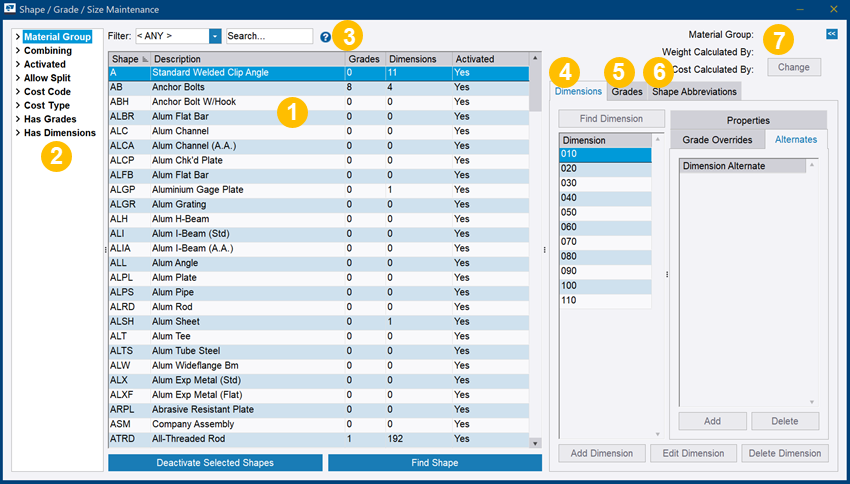
(1) Shape list: Lists all existing shapes in the material database in alphabetical order. You can see the abbreviation and description of the shape, the number of material grades and dimensions, and the activation status. When you select a shape in the shape list, you can start managing its dimensions, grades, and abbreviations.
For more information, see Shapes.
(2) Navigation tree: Filter the shapes that are shown in the shape list. See also Filters in Tekla PowerFab and Activate or deactivate shapes.
(3): Quick filter and search.
For more information, click  .
.
(4) Dimensions tab: Add new dimensions, modify dimension properties, add alternate dimensions and grade overides, show where particular dimensions are used in Tekla PowerFab, and delete unnecessary dimensions.
For more information, see Dimensions.
(5) Grades tab: Add, modify, or delete grades, and add grade substitutions or grade redirections.
For more information, see Grades.
(6) Shape Abbreviations tab: Add new abbreviations for shapes. By adding shape abbreviations, you can ensure that Tekla PowerFab recognizes any shapes that you import, even if the imported shapes do not use the Tekla PowerFab standard abbreviations.
For more information, see Manage shape abbreviations.
(7) When you have selected a shape, you can see the material group, weight calculation method, and cost calculation method, and the cost display units here. You can also change the cost display units.
For more information, see Change the display units of prices and Select metric or imperial mode.