Add users to Trimble Connect projects

Modified: 16 Syy 2025 Tekla PowerFab 2025i Tekla PowerFab GO 2025i

Add users to Trimble Connect projects

Tekla PowerFab users need to have access to Trimble Connect. You can invite users to participate in specific Trimble Connect projects.

You can add users to Trimble Connect projects either from Maintenance or from Project Management.

Add users to one or more projects

  1. Click the Maintenance ribbon tab.
  2. On the menu, select Integration Settings > Trimble Integrations > Trimble Connect.

    The Trimble Connect Settings dialog opens.
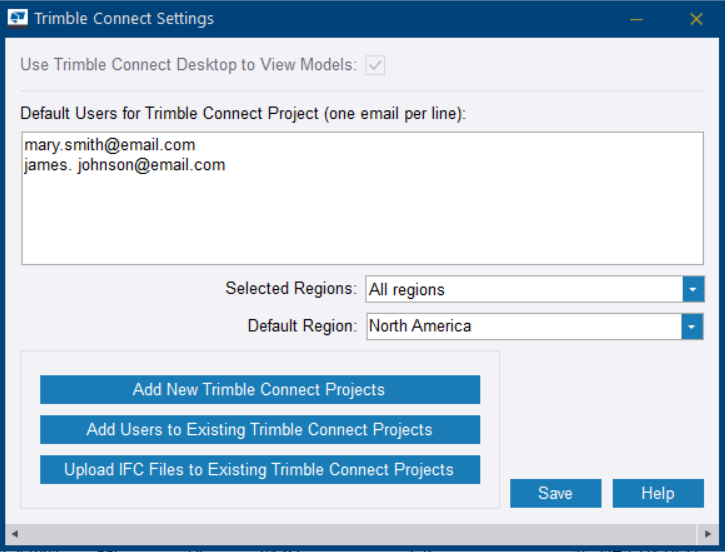
  3. Click Add Users to Existing Trimble Connect Projects.

    The Add Users to Project dialog opens.

  4. Click the arrow buttons to move the users that need access to the project to the Included list.

    The users in the Included list receive email invitations to the selected project or projects.

  5. Click OK.

    The Select Project dialog opens.

  6. Click the arrow buttons to move the projects to which you want to add the selected users to the Included list.
  7. Click OK.

    The Status dialog opens showing the invitation process status.

  8. When the setup is completed, click OK to close the Status dialog.

The selected users have now been sent email invitations to the selected Trimble Connect projects.

Add users to a specific project

In the Project Management module, you can add users to a specific Trimble Connect project.

Before you start: You need to have linked the project to a Trimble Connect project. See Link a project to Trimble Connect.
  1. In the Project dialog, click Add Users to Trimble Connect Project.

    The Add Users to Project dialog opens.

  2. Click the arrow buttons to move the users that need access to the project to the Included list.

    The users in the Included list receive email invitations to the selected project or projects.

  3. Click OK.

    The Status dialog opens showing the invitation process status.

  4. When the setup is completed, click OK to close the Status dialog.
Oliko tästä apua?
Lähetä
Edellinen
Seuraava