
Use a Trimble Connect folder as the project or firm folder
When you need to set up a project
folder XS_PROJECT or a firm folder XS_FIRM to be used in Tekla Model Sharing, the most convenient way to do this is to use a Trimble Connect project as the project or the firm folder.
By using a Trimble Connect project as the project or firm folder, you ensure that all Tekla Model Sharing users always use the same settings and that the updates are automatically shared with everyone.
Note that all users need to have access both to the Trimble Connect project and to the Tekla Model Sharing model.
The project and firm folder information is only updated from the Trimble Connect project to local versions of the shared models, not vice versa. In practice, this means that Tekla Structures downloads new files from the project or film folder to the local model and updates any changed files. If a local file is not stored in the Trimble Connect project folder, the file is removed from the local model.
Tekla Structures uses Trimble Connect folder sync (CONNECT_FOLDER_SYNC) to
synchronize the data.
When Tekla Structures detects a change between the local model data and the data in the Trimble Connect project or firm folder, you get the following notification:
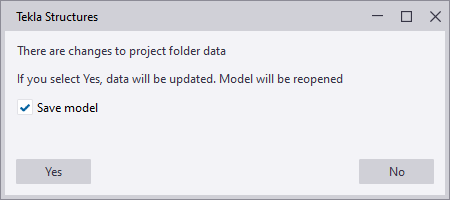
If you click Yes, the model is saved and closed. Then, the local model data is updated and the model is re-opened.
To set a folder in a Trimble Connect project as the XS_PROJECT or XS_FIRM
folder:
-
Depending on the option, do
one of the following:
To set a Trimble Connect project folder as Do this The XS_PROJECT folder
-
In the Advanced options dialog box, find the XS_PROJECT option.
-
Set the value of XS_PROJECT to %CONNECT_FOLDER_SYNC%.
Tekla Structures searches for differences between the files in the Trimble Connect project folder and the local ..\Users\<user>\AppData\Local\Trimble\Tekla folder sync\<folder> folder.
If you use the same Trimble Connect project both as the XS_PROJECT folder and for collaboration, use a sub-folder in the XS_PROJECT folder, so that the XS_PROJECT folder is separated from the Trimble Connect collaboration information. Set the sub-folder to %CONNECT_FOLDER_SYNC%\<folder>\<sub-folder of the folder>.
For example, you could save the project folder under the Project settings folder with the name Project. In this example, the value should then be set to %CONNECT_FOLDER_SYNC%\Project Settings\Project. You can also use lower level sub-folders.
The
XS_FIRMfolder-
In the Advanced options dialog box, find the XS_FIRM option.
-
Set the value of XS_FIRM to %CONNECT_FOLDER_SYNC%\<ProjectID>\<region>(\<folder>\<sub-folder of the folder>).
You can see the project ID in Trimble Connect for Browser:

The region is the same as the project server location setting. The options are:
-
asia
-
europe
-
northAmerica
For example, the value could be %CONNECT_FOLDER_SYNC%\g7nzNr838Tg\europe
If you use the same Trimble Connect project both as the XS_FIRM folder and for collaboration, use a sub-folder in the XS_FIRM folder, so that the XS_FIRM folder is separated from the Trimble Connect collaboration information. Set the sub-folder to %CONNECT_FOLDER_SYNC%\<ProjectID>\<region>\<folder>\<sub-folder of the folder>.
For example, you could save the project folder under the Project settings folder with the name Project. In this case, the value should be set to %CONNECT_FOLDER_SYNC%\g7nzNr838Tgeurope\Project Settings\Project. You can also use lower level sub-folders.
-
-
Note that files that are generated when macros are compiled (cs.dll and .cs.pdb) are ignored in the folder sync operation. Thus, adding these two files in the local folder will not trigger an update.