Production planning in Tekla PowerFab Go
The Production Planner tool in Tekla PowerFab Go allows drag-and-drop scheduling of work packages or individual departments across weeks and workshops.
The tool provides a clear view into what work needs to be done in your workshop and allows to see how the loadings of each work package impact your capacities.
Before you start planning, some actions are needed in Tekla PowerFab. See Configure production planning.
You can do the following actions in the planner view:
- search for work packages by job and description, for example
- view the work packages that are scheduled to a week by workshop
- view the department capacity and loading for each week or workshop
- view a list of unscheduled work packages and add them to the planner
- move work packages across weeks and workshops
- manage the schedule and capacity of work packages
You can plan on the workshop level and the department level.
To access the Production Planner, tap Production Planner on the home page.
Production Planner view
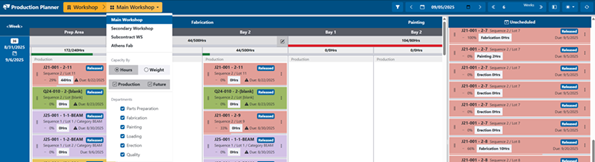
You can view multiple workshops simultaneously, which provides a top-level overview of all the work packages scheduled to a workshop for each week.
Workshop view
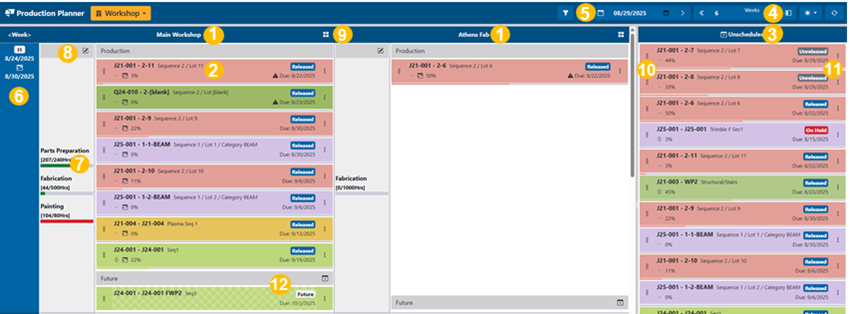
(1) Workshop
(2) A scheduled work package. Work packages are color-coded by job.
On each work package you can see the following information:
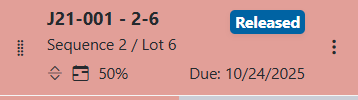
- Name of the work package
- Status (Released, Unreleased, On Hold)
- Handle for dragging and dropping a work package
- Priority symbol

- Calendar symbol if the work package is scheduled (split) across multiple weeks

- Percentage indicating the completeness. This is visually represented by the progress bar beneath the work package shows this visually.
- Due date, with a warning icon
 if scheduled past the due
date
if scheduled past the due
date - Three dots for opening a menu
 on a work package
indicates a warning related to production planning rules
on a work package
indicates a warning related to production planning rules
(3) Unscheduled work packages
(4) Switch for hiding the Unscheduled area.
(5) The start date and number of weeks displayed
(6) The weeks, in chronological order based on (5). Indicates the week number and the date range for a week.
(7) Department and its capacity (figures and colored bars):
- Green: Capacity available (less than 95% of total capacity)
- Yellow: 95–105% of total capacity
- Red: Overcapacity (over 105% of total capacity)
(8) Edit button to open the Shifts dialog for modifying the capacity for a specific week
(9) The four squares button to open the department planner
(10) Handle for dragging and dropping a work package
(11) Three dots to open a menu for selecting the following actions:
- Schedule/Reschedule/Unschedule
- Details: Work package number, start date, due date, job number, group 1 and 2, notes
- Priority
- Release/Unrelease
- Set on hold
(12) Future work packages.
To select what is displayed on the planner, tap Workshop:
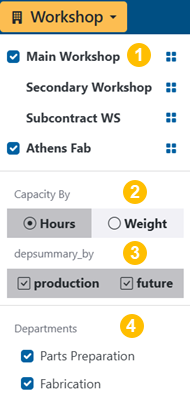
(1) Workshops, with the four squares button to open the department planner
(2) Capacities displayed as hours or weight
(3) Department summary: Select to include or exclude production and future work packages
(4) Departments
Department view