
Work with grids in the model
A grid represents a three-dimensional complex of horizontal and vertical planes. The grid is shown on the view plane using dash-and-dot lines. You can create both rectangular and radial grids. Use grids as an aid in locating objects in a model. You can make rectangular grids and grid lines act magnetically so that the objects on the grid lines of a rectangular grid follow if you move the grid line.
Grid terminology
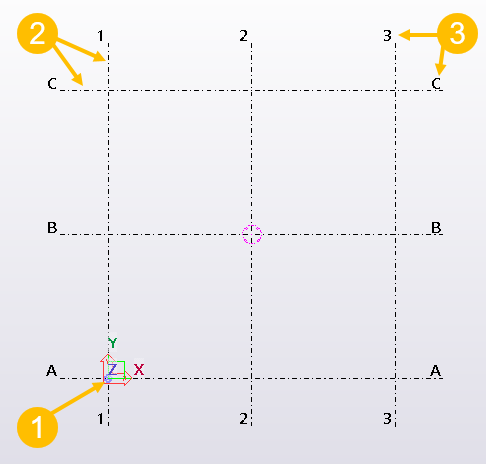
(1) Grid origin is the point where the zero points of each coordinate axis intersect
(2) Grid line extensions define how far the grid lines extend in each direction
(3) Grid labels are the names of the grid lines shown in views
Several grids in one model
You can have more than one grid in a model. You can create a large-scale grid for the entire structure, and smaller grids for some detailed sections. Create as many grids as needed, so that you can easily place objects in your model.


Single grid lines
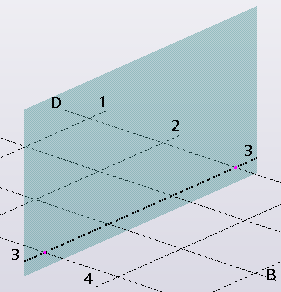
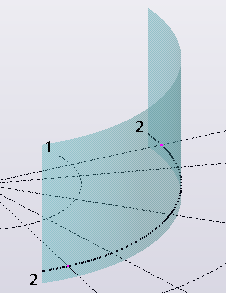
You can create single grid lines and attach them to an existing grid.
Single grid lines have handles. If the
 Select grid line selection switch is active and
you select a grid line, the handles appear in magenta. If you move the handles to
make a skewed grid, you can do this only on the local XY plane of the grid.
Select grid line selection switch is active and
you select a grid line, the handles appear in magenta. If you move the handles to
make a skewed grid, you can do this only on the local XY plane of the grid.
If you cannot see grid in the model
Sometimes grid is not visible in the model. Possible reasons can be:
-
View depth
View depth has no effect on grid visibility. The grid is only shown in the view if any of the grids' planes intersect with the view plane. To move the view plane to make the grid visible, click the view, right-click and select .
-
Grid visibility
Grid can be hidden. You can control the grid visibility in the Display settings. Double-click the view to open the View Properties dialog. Click the Display... button to open the Display dialog, and make sure that the Grids checkbox is selected.
-
Work area
Grid can be outside the work area and hence it is not visible in the current view. To resize the work area to include grids, click the view, right-click and select Fit work area to entire model.
-
Grid does not exist
Grid may have been deleted, or it has been not created yet.
For more information, see Why is the grid not visible in the 3D view?