
STEP/IGES
You can export polybeams, and straight, curved and arc shaped profiles with boolean operators directly in the STEP (.stp) or IGES (.igs) format with real arc and bend data for automated manufacturing of steel parts. The export provides solid objects.
You can export steel profiles and associated connecting entities, such as bolts and welds, as assemblies or single parts. The Tekla Structures model geometry is directly transformed to the STEP and IGES file formats using the Open CASCADE Technology (OCCT), and no conversion files are needed.
STEP (Standard for the Exchange of Product Data) and IGES (Initial Graphics Exchange Specification) are well-established and standardized neutral 3D CAD file formats that are interoperable among various CAD programs, such as Dassault Systèmes SOLIDWORKS, Dassault Systèmes CATIA, Autodesk Inventor, Siemens NX, and Siemens Solid Edge. The STEP file format is preferred as the industry standard when exchanging data for CAD programs. However, the IGES format is still reliable for basic cross-platform compatibility, especially if you only need to store raw 3D models.
For more information about the STEP and IGES formats, see STEP and IGES.
Limitations in STEP/IGES export
Currently, there are limitations in the STEP/IGES export when exporting the object types listed below. The output might not be in line with the model content, or the geometry might not be completely of type solid.
-
Object types related to sheet metal unfolding, such as bent plates and lofted plates
-
Cambered profiles
-
Warped profiles
-
Reinforcement and mesh
-
Weld preparation
-
Added parts
-
Surface treatment
-
Pours
-
Sketched profiles with cross-sections including roundings or arcs
-
Parametric profiles with varying cross-sections
Export in STEP or IGES format
-
Load any predefined export settings available in your environment, or set
up the export as necessary.
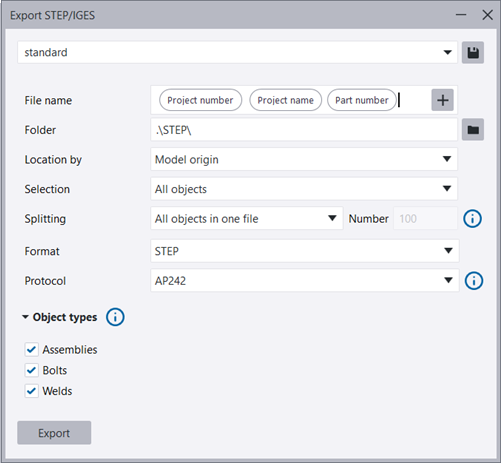
If there are several settings files listed, you can start writing the name of the desired settings file to show only the desired file on the list, and then press Enter to select it.

For details about the export settings, see the section "STEP/IGES export settings" below.
STEP/IGES export settings
| Setting | Description |
|---|---|
| File name |
Define the name of
the export file by entering the name directly in File name or by clicking the To delete an element from the file name, select the element or place the cursor in front of the element and press Delete on the keyboard. You can also right-click the element and select Delete. You can also drag elements to a new location inside the File name box.
The file name extension will be automatically added according to the selected Format. |
| Folder | The \STEP folder under the current model folder is the default export folder. You can browse for another folder. You can define both absolute and relative paths. |
| Location by |
The options are: Model origin: Exports the model relative to 0,0,0. Work plane: Exports the model relative to the current work plane coordinate system. Base point: <name of base point> exports the model relative to the base point using coordinate system values from the base point definition. |
| Selection | Select All objects or Selected objects. |
| Splitting |
The options are: All objects in one file Selected number of objects in each file: Specify the number of objects. One object in each file If you export to multiple files, the export adds a running number to the end of the file name. |
| Format | Select STEP or IGES. |
| Protocol |
For STEP files, select the appropriate application Protocol: AP203 (default) AP214 AP242 The application protocol (AP) to select depends on the software that will be used to open the file. AP203 is the oldest and AP242 the newest protocol. |
| Object types | Select whether to include Assemblies, Bolts, or Welds in the export. If you select Assemblies, steel parts are exported as whole assemblies, otherwise steel parts are exported as single objects. |
 plus button
and double-clicking the file name elements in the system
attributes list. You can use a combination of text and
attributes.
plus button
and double-clicking the file name elements in the system
attributes list. You can use a combination of text and
attributes.
View STEP or IGES files
To visualize the output for checking purposes, you can use any of the following:
- Tekla Structures: Add the exported STEP or IGES file to a Tekla Structures model as a reference file.
- Trimble Connect: Add a STEP or IGES file to a Trimble Connect project.
- Viewer application: There are commercial applications available, but also a few free-of-charge applications, of which we recommend the following:
Example of export file contents
Example of a STEP export file:

Example of an IGES export file

Example of STEP/IGES export log
The log file StepIgesExport_<user_name>.log is written to the \logs folder under the current model folder. Below is
an example of the log file:
*** STEP/IGES exporter log file ***

Tekla Structures version: 2025
Tekla Structures build number: 5552

Units: Imperial

Model path and name: C:\TeklaStructuresModels\Steel Fabrication

Selected Export options:
Location option: Global origin
Selection: Selected objects
Format: STEP
Protocol: AP203
Object types: assemblies, bolts, welds

Export started.
Date: 2024:10:07
Time: 14:23:40


Information: Export completed:
********************************
14:23:40 - Info: Number of objects to export: 23
14:23:45 - Info: Exported file: C:\TeklaStructuresModels\Steel Fabrication\STEP\WORK-5552.stp
********************************


Export completed.
Date: 2024:10:07
Time: 14:23:45
Duration: 00:04