Add templates in automatic marks

Tekla Structures
Modificado: 14 Nov 2024
2026
Tekla Structures

Add templates in automatic marks

You can create custom graphical templates (.tpl) with Template Editor and add them as elements in all types of marks, dimension marks and associative notes in all drawing types.

In mark templates, you can include detailed information of an embed or assembly, such as the sub-material used. Or you can use a template that changes the unit and the number of decimals in measurement values in a mark. You can also add graphical objects using the Template Editor tools.

To add templates in dimension marks or tags, you need to modify the dimension properties in the property pane in an open drawing. You can save the dimension properties, and then take the saved properties into use when you create automatic dimensions.

The size of the templates in part marks is calculated according to the actual size of template contents. Only lines and texts in the template are considered when calculating the exact size. This means, for example, that circles or bitmaps in the template do not have any effect.

Limitations: Mark templates do not support image files like the other graphical drawing templates.

Before you add a template in a mark, ensure that the template you use does not contain any margins.

Add templates in marks

  1. On the Drawings & reports tab, click Drawing properties and select the drawing type.
  2. Load drawing properties that are as close to the ones you need as possible.
  3. Single-part, assembly and cast unit drawings: Click View creation in the options tree on the left, select the view and the properties that you want to change, and click View properties.
  4. Click the mark type that you want to change.

    For example, click Part mark.

  5. In the mark properties dialog, double-click the Template element in the Available elements list to add it in the mark.

    This will remove all other elements from the mark.

  6. Select a template from the list in the Mark content - template dialog.
    If you have not created a template yet, or want to edit the template, you can do that from here by selecting Create new... or Edit...

    Remember that if you edit the template here, the change affects all drawings that have marks containing the changed template.

  7. Click OK to return to mark properties.
  8. Save the mark properties for later using a unique name.
  9. Do one of the following depending on the drawing type:
    • Single-part, assembly and cast unit drawings: Click Save to save the changes in view properties and Close to return to drawing properties.
    • General arrangement drawings: Click OK.
  10. Click Save to save the drawing properties, then click OK and create the drawing.
  11. When necessary, copy the saved mark properties files from the <model>\attributes folder into your firm or project folder.
Tip:

The mark templates are by default searched from the following folders in the following order:

%XS_TEMPLATE_DIRECTORY%\mark

ModelDir\mark

%XS_PROJECT%\mark

%XS_FIRM%\mark

%XS_TEMPLATE_DIRECTORY_SYSTEM%\mark

%XS_SYSTEM%\mark

The mark folder name can be changed using the advanced option XS_TEMPLATE_MARK_SUB_DIRECTORY.

Example of a template in a mark
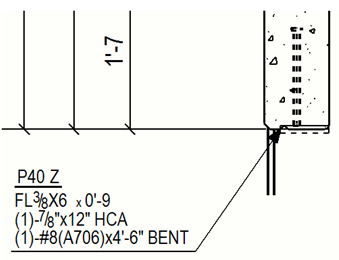
Example 1: Create a mark template containing separate value fields and text elements

You can use decimals instead of fractions in your part marks in the US environment Imperial role by using a mark template. The template contains separate value fields and text elements that change the fractions to decimals, and change the number of decimals.

  1. Follow the steps 1 - 5 in "Add templates to marks" above so that you have double-clicked the Template element in the Available elements list .
  2. In the Mark content - template dialog, click Create new.

    This starts the Template Editor.

  3. Click File > New and create a new graphical template.
  4. Click Insert > Component > Row.
  5. Select PART as the content type.
  6. Click Insert > Text, enter L and place it inside the row you just added.
  7. Click Insert > Value field and place the value field on the right side of the L text.
  8. In the displayed Select Attribute [Part] dialog, scroll down to PROFILE - Profile, open the profile tree, select the HEIGHT - height property and click OK.
  9. Double-click the value field. In the Value Field Properties dialog, change the settings as follows:
    • Unit: inch
    • Decimals: 1
    • Length: 8
  10. Click OK.
  11. Click Insert > Text, enter X as text and place it on the right side of the value field.
  12. In the similar way, add another value field for the width information (WIDTH - Width profile property).
  13. Click Insert > Text and add the second X between the value fields.
  14. Add the third value field for the profile flange thickness by selecting FLANGE_THICKNESS_1 - Flange thickness 1 profile property and modify the settings as follows:
    • Unit: inch
    • Decimals: 2
    • Length: 4
  15. Click Edit > Properties and minimize the height and the width of the row.
  16. Click File > Save to save the template.

    The template is by default saved as a .tpl file in the \mark folder under the model folder. You can copy this template to other models as required.

  17. In Tekla Structures, click Refresh list in the Mark content - template dialog to see the template you created.
  18. Select the template and click OK.
  19. Save the mark properties for late use with a unique name.
  20. Do one of the following depending on the drawing type:
    • Single-part, assembly and cast unit drawings: Click Save to save the changes in view properties and Close to return to drawing properties.

    • General arrangement drawings: Click OK.

  21. Click Save to save the drawing properties, then click OK and create the drawing.

Example 2: Create a mark template containing a formula in the value field

You use decimals instead of fractions in your part marks in the US environment Imperial role by adding a formula in the mark template value field.

  1. Follow the steps 1 - 5 in "Add templates to marks" above so that you have double-clicked the Template element in the Available elements list .
  2. In the Mark content - template dialog, click Create new.

    This starts the Template Editor.

  3. Click File > New and create a new graphical template.
  4. Click Insert > Component > Row.
  5. Select PART as the content type.
  6. Click Insert > Value field, and place the field.
  7. In the displayed Select Attribute [Part] dialog, click the Formula button.
  8. Add the following formula in the Formula box and click OK:

    "L " + format(GetValue("HEIGHT"),"Length","inch",1) + " x "+ format(GetValue("WIDTH"),"Length","inch",1) + " x " + format(GetValue("PROFILE.FLANGE_THICKNESS_1"),"Length","inch",2)

  9. Double-click the value field to open the Value Field Properties dialog.
  10. Set the Data type to text, enter a name for the field, for example, PART_MARK, and ensure that the length value you give in the Length field is high enough to fit all the characters and numbers included, for example, 20.
  11. Click OK.
  12. Click Edit > Properties and minimize the height and the width of the row.
  13. Click File > Save to save the template.

    The template is by default saved as a .tpl file in the \mark folder under the model folder. You can copy this template to other models as required.

  14. In Tekla Structures, click Refresh list in the Mark content - template dialog to see the template you created.
  15. Select the template and click OK.
  16. Save the mark properties for later use with a unique name.
  17. Do one of the following depending on the drawing type:
    • Single-part, assembly and cast unit drawings: Click Save to save the changes in view properties and Close to return to drawing properties.

    • General arrangement drawings: Click OK.

  18. Click Save to save the drawing properties, then click OK and create the drawing.
Esta informação foi útil?
Enviar
Anterior
Seguinte