
Tapered frame (S53)
Tapered frame (S53) creates a built-up frame or parts of it. You can control the taper and the size of the spliced material.
Objects created
-
Built-up columns with base plate and end plate
-
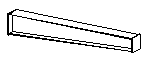
Built-up beams with end plates
Use for
| Situation | Description |
|---|---|
|
|
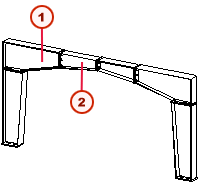
Built-up frame 1 Beam 1 2 Beam 2 On the Picture tab, use the following options:
|
|
|
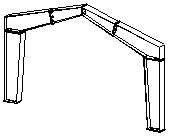
Sloped built-up frame On the Picture tab, use the following options:
|
|
|
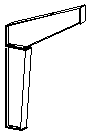
Only half of the frame On the Picture tab, use the following options:
|
|
|
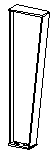
Built-up column with base plate and end plate On the Picture tab, use the following options:
|
|
|
Built-up beam (1) with end plates On the Picture tab, use the following options:
|
|
|
Built-up beam (2) with end plates On the Picture tab, use the following options:
|

Limitations
Creates a frame only in the global X direction. Y direction is not possible.
Before you start
Ensure that you have a point to pick.
Selection order
-
Pick the position of the column.
The frame is created automatically when you pick the position.
Part identification key
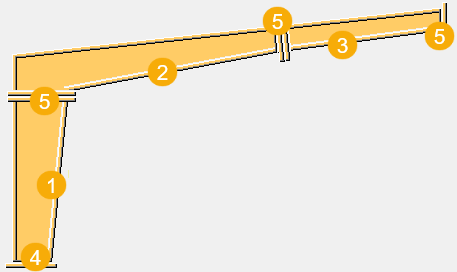
| Description | |
|---|---|
|
1 |
Column |
|
2 |
First beam |
|
3 |
Second beam |
|
4 |
Base plate |
|
5 |
End plate |
Picture tab
Use the Picture tab to define the frame dimensions and location relative to the picked points.
Dimensions
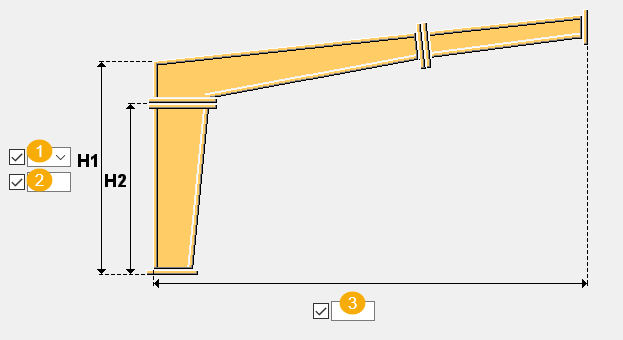
| Description | |
|---|---|
|
1 |
Select the height dimension to be defined. |
|
2 |
Define the height. |
|
3 |
Dimension from the column outer edge to the frame center line. |
Frame type
| Option | Description |
|---|---|
|
|
Column is created. |
|
|
First beam is created. |
|
|
Second beam is created. |
|
|
Column and first beam are created. |
|
|
Column, first beam, and second beam are created. |
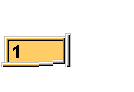
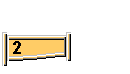
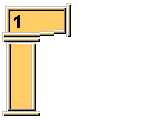
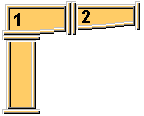
Symmetry type
| Option | Description |
|---|---|
|
|
Symmetrical frame is not created. |
|
|
Symmetrical frame is created. |
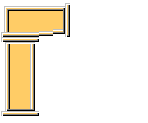
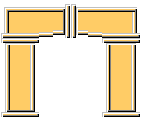
Part class
Define the class of the web and flange plates, base plates, and end plates.
Parts tab
Use the Parts tab to define the plate properties.
Parts
| Column parts | Description |
|---|---|
|
Top fl. profile, Bottom fl. profile |
Select the profile from the profile catalog. |
|
Web thickness |
Thickness of the column web. |
|
Base plate |
Thickness and width of the base plate. |
|
Horiz end plate |
Thickness and width of the horizontal end plate. |
| 1 Beam parts | Description |
|---|---|
|
Top fl. profile, Bottom fl. profile, Vertical fl. profile |
Select the profile from the profile catalog. |
|
Web thickness |
Thickness of the first beam web. |
|
Horiz end plate |
Thickness and width of the horizontal end plate. |
|
Lateral end plate |
Thickness and width of the lateral end plate. |
| 2 Beam parts | Description |
|---|---|
|
Top fl. profile, Bottom fl. profile |
Select the profile from the profile catalog. |
|
Web thickness |
Thickness of the second beam web. |
|
Left end plate |
Thickness and width of the left end plate. |
|
Right end plate |
Thickness and width of the right end plate. |
|
Option |
Description |
Default |
|---|---|---|
|
Pos_No |
Prefix and start number for the part position number. Some components have a second row of fields where you can enter the assembly position number. |
The default part start number is defined in the Components settings in . |
|
Material |
Material grade. |
The default material is defined in the Part material box in the Components settings in . |
|
Name |
Name that is shown in drawings and reports. |
Column tab
Use the Column tab to define the column dimensions.
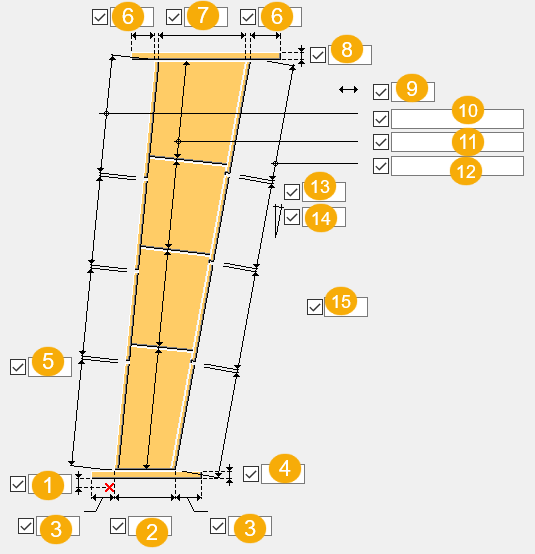
Dimensions
| Description | |
|---|---|
|
1 |
Distance from the first point picked to the end of the column. |
|
2 |
Column depth at the first end. This is either the height of the web or the entire column, depending on what you select as the depth measure. |
|
3 |
Base plate extension dimension at the bottom of the column. |
|
4 |
Base plate thickness. |
|
5 |
Gap between the top flange plates. |
|
6 |
End plate extension dimension at the top of the column. |
|
7 |
Column depth at the second end. This is either the height of the web or the entire column, depending on what you select as the depth measure. |
|
8 |
End plate thickness. |
|
9 |
Column end alignment dimension. |
|
10 |
Length of the top flange plates. For example, to have four one-meter sections, enter 4*1000. If you want to create the flange from a single plate, leave the box empty. |
|
11 |
Length of the web plates. For example, to have four one-meter sections, enter 4*1000. If you want to create the web from a single plate, leave the box empty. |
|
12 |
Length of the bottom flange plates. For example, to have four one-meter sections, enter 4*1000. If you want to create the flange from a single plate, leave the box empty. |
|
13 |
Gap between the bottom flange plates. |
|
14 |
Sloping of the column as a percentage. |
|
15 |
Column rotation dimension. |
Column end alignment
| Option | Description |
|---|---|
|
|
Cut is vertical or horizontal. |
|
|
Cut is perpendicular to the top flange. |
|
|
Cut is relative to the current position of the work plane. |



Column rotation
| Option | Description |
|---|---|
|
|
Select how the column is rotated and define the dimension for the rotation. |
Column position to picked point
| Option | Description |
|---|---|
|
|
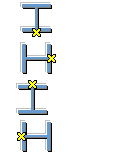
Moves the column so that the point is located at the column flange. |
|
|
Moves the column so that the point is located at the column web. |
|
|
Moves the column so that the point is located in the middle of the column cross section. |


Web plate orientation
| Option | Description |
|---|---|
|
|
Web plates are cut perpendicular to the top flange. |
|
|
Web plates are cut vertically. |


Depth measure
| Option | Description |
|---|---|
|
|
Depth is the depth of the web. |
|
|
Depth is calculated from the outer surfaces of the top and bottom flanges. |


Column 2 tab
Use the Column 2 tab to define the base plate bolt group dimensions and properties.
Bolt group dimensions
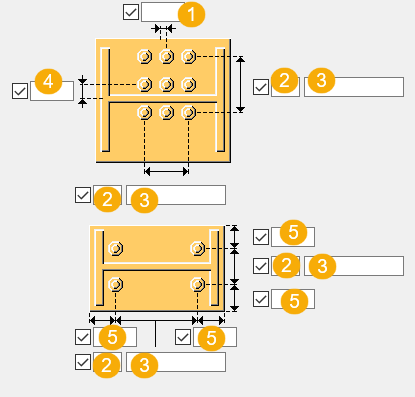
| Description | |
|---|---|
|
1 |
Dimension for horizontal bolt group position. |
|
2 |
Number of bolts. |
|
3 |
Bolt spacing. Use a space to separate bolt spacing values. Enter a value for each space between bolts. For example, if there are 3 bolts, enter 2 values. |
|
4 |
Dimension for vertical bolt group position. |
|
5 |
Bolt edge distance. Edge distance is the distance from the center of a bolt to the edge of the part. |
Bolt creation
| Option | Description |
|---|---|
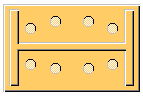
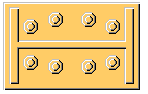
|
|
Holes are created. |
|
|
Bolts are created. |
Bolt basic properties
|
Option |
Description |
Default |
|---|---|---|
|
Bolt size |
Bolt diameter. |
Available sizes are defined in the bolt assembly catalog. |
|
Bolt standard |
Bolt standard to be used inside the component. |
Available standards are defined in the bolt assembly catalog. |
|
Tolerance |
Gap between the bolt and the hole. |
|
|
Thread in mat |
Defines whether the thread may be within the bolted parts when bolts are used with a shaft. This has no effect when full-threaded bolts are used. |
Yes |
|
Site/Workshop |
Location where the bolts should be attached. |
Site |
Slotted holes
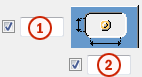
You can define slotted, oversized, or tapped holes.
|
Option |
Description |
Default |
|---|---|---|
|
1 |
Vertical dimension of slotted hole. |
0, which results in a round hole. |
|
2 |
Horizontal dimension of slotted hole, or allowance for oversized holes. |
0, which results in a round hole. |
|
Hole type |
Slotted creates slotted holes. Oversized creates oversized holes. No hole does not create holes. Tapped creates tapped holes. |
|
|
Rotate Slots |
When the hole type is Slotted, this option rotates the slotted holes. |
|
|
Slots in |
Part(s) in which slotted holes are created. The options depend on the component in question. |
Column 3 tab
Use the Column 3 tab to define the end plate bolt group dimensions and properties between the column and the first beam.
Bolt group dimensions
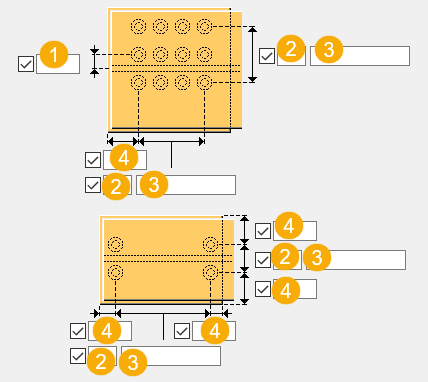
| Description | |
|---|---|
|
1 |
Dimension for vertical bolt group position. |
|
2 |
Number of bolts. |
|
3 |
Bolt spacing. Use a space to separate bolt spacing values. Enter a value for each space between bolts. For example, if there are 3 bolts, enter 2 values. |
|
4 |
Bolt edge distance. Edge distance is the distance from the center of a bolt to the edge of the part. |
Bolt basic properties
|
Option |
Description |
Default |
|---|---|---|
|
Bolt size |
Bolt diameter. |
Available sizes are defined in the bolt assembly catalog. |
|
Bolt standard |
Bolt standard to be used inside the component. |
Available standards are defined in the bolt assembly catalog. |
|
Tolerance |
Gap between the bolt and the hole. |
|
|
Thread in mat |
Defines whether the thread may be within the bolted parts when bolts are used with a shaft. This has no effect when full-threaded bolts are used. |
Yes |
|
Site/Workshop |
Location where the bolts should be attached. |
Site |
Slotted holes
You can define slotted, oversized, or tapped holes.
|
Option |
Description |
Default |
|---|---|---|
|
1 |
Vertical dimension of slotted hole. |
0, which results in a round hole. |
|
2 |
Horizontal dimension of slotted hole, or allowance for oversized holes. |
0, which results in a round hole. |
|
Hole type |
Slotted creates slotted holes. Oversized creates oversized holes. No hole does not create holes. Tapped creates tapped holes. |
|
|
Rotate Slots |
When the hole type is Slotted, this option rotates the slotted holes. |
|
|
Slots in |
Part(s) in which slotted holes are created. The options depend on the component in question. |
Bolt assembly
The selected check boxes define which component objects (bolt, washers, and nuts) are used in the bolt assembly.
If you want to create a hole only, clear all the check boxes.
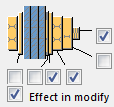
To modify the bolt assembly in an existing component, select the Effect in modify check box and click Modify.
Bolt length increase
Define how much the bolt length is increased. Use this option when, for example, painting requires the bolt length to be increased.

Beam 1 tab
Use the Beam 1 tab to define the dimensions of the first beam.
Dimensions
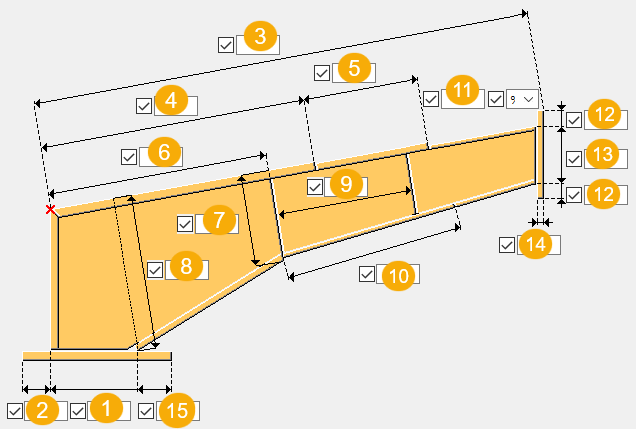
| Description | |
|---|---|
|
1 |
Beam depth at the first end. |
|
2 |
Distance from the first point picked to the end of the beam. |
|
3 |
Length of the top flange. |
|
4 |
Length of the top flange plate to the first flange gap. |
|
5 |
Length of the top flange plate to the second flange gap. |
|
6 |
Length the top flange to the slope angle. |
|
7 |
Beam web height at the slope angle. |
|
8 |
Beam web height at the column end. |
|
9 |
Length of the web plate. |
|
10 |
Length of the bottom flange plate. |
|
11 |
Horizontal sloping of the beam, either as a percentage or in degrees. |
|
12 |
End plate extension dimension. |
|
13 |
Beam depth at the second end. |
|
14 |
End plate thickness. |
|
15 |
End plate extension dimension. |
Web plate orientation
| Option | Description |
|---|---|
|
|
Web plates are cut perpendicular to the top flange. |
|
|
Web plates are cut vertically. |


Beam end alignment
| Option | Description |
|---|---|
|
|
Cut is vertical or horizontal. |
|
|
Cut is perpendicular to the top flange. |


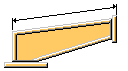
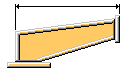
Beam length
| Option | Description |
|---|---|
|
|
Sloped beam length |
|
|
Horizontal beam length |
Beam height
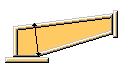
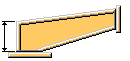
| Option | Description |
|---|---|
|
|
Perpendicular beam height |
|
|
Vertical beam height |
Beam bottom cut
| Option | Description |
|---|---|
|
|
Beam bottom web is cut. |
|
|
Beam bottom is fitted to the end plate. |


Beam 1_2 tab
Use the Beam 1_2 tab to define the end plate bolt group dimensions and bolt properties between the first beam and the second beam.
Bolt group dimensions
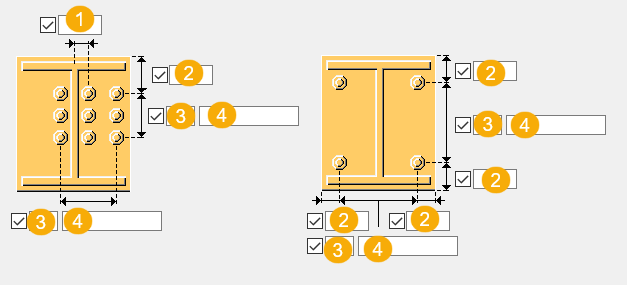
| Description | |
|---|---|
|
1 |
Dimension for horizontal bolt group position. |
|
2 |
Bolt edge distance. Edge distance is the distance from the center of a bolt to the edge of the part. |
|
3 |
Number of bolts. |
|
4 |
Bolt spacing. Use a space to separate bolt spacing values. Enter a value for each space between bolts. For example, if there are 3 bolts, enter 2 values. |
Bolt basic properties
|
Option |
Description |
Default |
|---|---|---|
|
Bolt size |
Bolt diameter. |
Available sizes are defined in the bolt assembly catalog. |
|
Bolt standard |
Bolt standard to be used inside the component. |
Available standards are defined in the bolt assembly catalog. |
|
Tolerance |
Gap between the bolt and the hole. |
|
|
Thread in mat |
Defines whether the thread may be within the bolted parts when bolts are used with a shaft. This has no effect when full-threaded bolts are used. |
Yes |
|
Site/Workshop |
Location where the bolts should be attached. |
Site |
Slotted holes
You can define slotted, oversized, or tapped holes.
|
Option |
Description |
Default |
|---|---|---|
|
1 |
Vertical dimension of slotted hole. |
0, which results in a round hole. |
|
2 |
Horizontal dimension of slotted hole, or allowance for oversized holes. |
0, which results in a round hole. |
|
Hole type |
Slotted creates slotted holes. Oversized creates oversized holes. No hole does not create holes. Tapped creates tapped holes. |
|
|
Rotate Slots |
When the hole type is Slotted, this option rotates the slotted holes. |
|
|
Slots in |
Part(s) in which slotted holes are created. The options depend on the component in question. |
Beam 2 tab
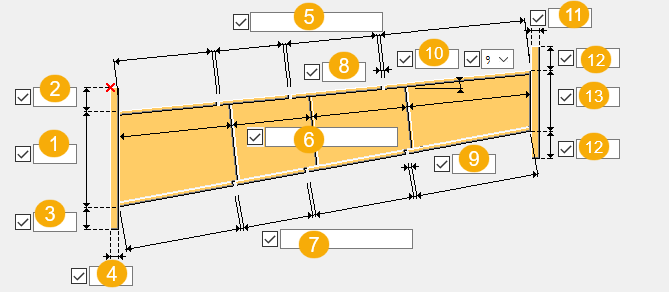
Use the Beam 2 tab to define the dimensions of the second beam.
Dimensions
| Description | |
|---|---|
|
1 |
Beam depth at the first end. |
|
2 |
Distance from the first point picked to the end of the beam. |
|
3 |
End plate extension at the first end. |
|
4 |
End plate thickness at the first end. |
|
5 |
Length of the top flange plates. For example, to have four one-meter sections, enter 4*1000. Leave blank to create the flange or web from a single plate. |
|
6 |
Length of the web plates. For example, to have four one-meter sections, enter 4*1000. Leave blank to create the flange or web from a single plate. |
|
7 |
Length of the bottom flange plates. For example, to have four one-meter sections, enter 4*1000. Leave blank to create the flange or web from a single plate. |
|
8 |
Gap between the top flange plates. |
|
9 |
Gap between the bottom flange plates. |
|
10 |
Horizontal sloping of the beam, either as a percentage or in degrees. |
|
11 |
End plate thickness at the second end. |
|
12 |
End plate extension at the second end. |
|
13 |
Beam depth at the second end. This is the height of the web or the entire beam, depending on what you select as the depth measure. |
Beam position to picked point
| Option | Option | Description |
|---|---|---|
|
|
|
Moves the beam so that the point is located at the beam flange. |
|
|
|
Moves the beam so that the point is located at the beam web. |
|
|
|
Moves the beam so that the point is located in the middle of the beam cross section. |


Beam end alignment
| Option | Option | Option |
|---|---|---|
|
|
|
Cut is vertical or horizontal. |
|
|
|
Cut is perpendicular to the top flange. |
|
|
|
Cut is relative to the current position of the work plane. |


Web plate orientation
| Option | Description |
|---|---|
|
|
Web plates are cut perpendicular to the top flange. |
|
|
Web plates are cut vertically. |
Depth measure
| Option | Description |
|---|---|
|
|
Depth is calculated from the outer surfaces of the top and bottom flanges. |
|
|
Depth is the depth of the web. |
Beam 2_2 tab
Use the Beam 2_2 tab to define the end plate bolt group dimensions and bolt properties at the hip between the second beams.
Bolt group dimensions
| Description | |
|---|---|
|
1 |
Dimension for horizontal bolt group position. |
|
2 |
Bolt edge distance. Edge distance is the distance from the center of a bolt to the edge of the part. |
|
3 |
Number of bolts. |
|
4 |
Bolt spacing. Use a space to separate bolt spacing values. Enter a value for each space between bolts. For example, if there are 3 bolts, enter 2 values. |
Bolt basic properties
|
Option |
Description |
Default |
|---|---|---|
|
Bolt size |
Bolt diameter. |
Available sizes are defined in the bolt assembly catalog. |
|
Bolt standard |
Bolt standard to be used inside the component. |
Available standards are defined in the bolt assembly catalog. |
|
Tolerance |
Gap between the bolt and the hole. |
|
|
Thread in mat |
Defines whether the thread may be within the bolted parts when bolts are used with a shaft. This has no effect when full-threaded bolts are used. |
Yes |
|
Site/Workshop |
Location where the bolts should be attached. |
Site |
Slotted holes
You can define slotted, oversized, or tapped holes.
|
Option |
Description |
Default |
|---|---|---|
|
1 |
Vertical dimension of slotted hole. |
0, which results in a round hole. |
|
2 |
Horizontal dimension of slotted hole, or allowance for oversized holes. |
0, which results in a round hole. |
|
Hole type |
Slotted creates slotted holes. Oversized creates oversized holes. No hole does not create holes. Tapped creates tapped holes. |
|
|
Rotate Slots |
When the hole type is Slotted, this option rotates the slotted holes. |
|
|
Slots in |
Part(s) in which slotted holes are created. The options depend on the component in question. |
Welds
Click the link below to find out more: