
Shear plate (34)
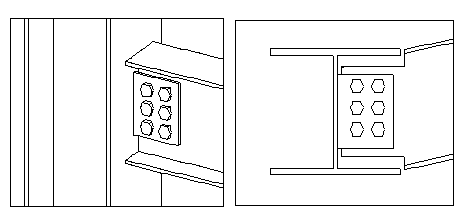
Shear plate (34) connects a beam to a column or to another beam with a shear tab that is welded to the main part and bolted to the web of the secondary beam.
Objects created
-
Shear tab
-
Bolts
-
Welds
Use for
| Situation | Description |
|---|---|
|
|
Beam connected to a column with a shear tab that is welded to the main part and bolted to the secondary part. |
Selection order
-
Select the main part (beam or column).
-
Select the secondary part (beam).
The connection is created automatically when the secondary part is selected.
Part identification key

| Description | |
|---|---|
|
1 |
Shear tab |
Picture tab
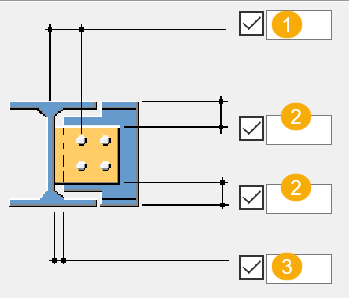
Use the Picture tab to define the connection dimensions.
Dimensions
| Description | Default | |
|---|---|---|
|
1 |
Horizontal distance from the bolt group to the main part |
|
|
2 |
Shear tab edge distance from the secondary part top and bottom |
|
|
3 |
Gap between the main part and the secondary part |
10 mm |
Parts tab
Use the Parts tab to define the part properties.
Parts
| Option | Description | Default |
|---|---|---|
|
Plate |
Thickness of the shear tab |
Half the bolt thickness rounded up to: 8, 10, 12, 16, 20, 25, 30, 35, 40, 45, and so on. |
|
Option |
Description |
Default |
|---|---|---|
|
Pos_No |
Prefix and start number for the part position number. Some components have a second row of fields where you can enter the assembly position number. |
The default part start number is defined in the Components settings in . |
|
Material |
Material grade. |
The default material is defined in the Part material box in the Components settings in . |
|
Name |
Name that is shown in drawings and reports. |
Parameters tab
Use the Parameters tab to define the shear tab position.
Position
| Option | Description |
|---|---|
|
Placing |
Select whether the shear tab is placed on the left side or on the right side. |
Bolts
Define the bolt properties.
Bolt basic properties
|
Option |
Description |
Default |
|---|---|---|
|
Bolt size |
Bolt diameter. |
Available sizes are defined in the bolt assembly catalog. |
|
Bolt standard |
Bolt standard to be used inside the component. |
Available standards are defined in the bolt assembly catalog. |
|
Tolerance |
Gap between the bolt and the hole. |
|
|
Thread in mat |
Defines whether the thread may be within the bolted parts when bolts are used with a shaft. This has no effect when full-threaded bolts are used. |
Yes |
|
Site/Workshop |
Location where the bolts should be attached. |
Site |
Slotted holes
You can define slotted, oversized, or tapped holes.

|
Option |
Description |
Default |
|---|---|---|
|
1 |
Vertical dimension of slotted hole. |
0, which results in a round hole. |
|
2 |
Horizontal dimension of slotted hole, or allowance for oversized holes. |
0, which results in a round hole. |
|
Hole type |
Slotted creates slotted holes. Oversized creates oversized holes. No hole does not create holes. Tapped creates tapped holes. |
|
|
Rotate Slots |
When the hole type is Slotted, this option rotates the slotted holes. |
|
|
Slots in |
Part(s) in which slotted holes are created. The options depend on the component in question. |
Bolt assembly
The selected check boxes define which component objects (bolt, washers, and nuts) are used in the bolt assembly.
If you want to create a hole only, clear all the check boxes.

To modify the bolt assembly in an existing component, select the Effect in modify checkbox and click Modify.
General tab
Click the link below to find out more:
Design tab
Click the link below to find out more:
Analysis tab
Click the link below to find out more:
Welds
Click the link below to find out more: