Send an RFI via email

Tekla PowerFab
수정됨: 18 11월 2024
2025
Tekla PowerFab Tekla PowerFab GO

Send an RFI via email

You can send the currently selected request for information (RFI) via email by using the Email Selected RFI command.

Note: The Email Selected RFI command only works with Microsoft Outlook, so you need to have Microsoft Outlook open before trying to send a transmittal by email.
  1. To access the RFI dialog, do either of the following:
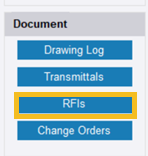
    • In the Project dialog, click RFIs.

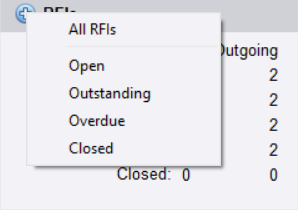
    • On the Summary tab , click + in the upper-right corner of the RFIs section, and select which requests for information you want to see.
    The RFI dialog opens.
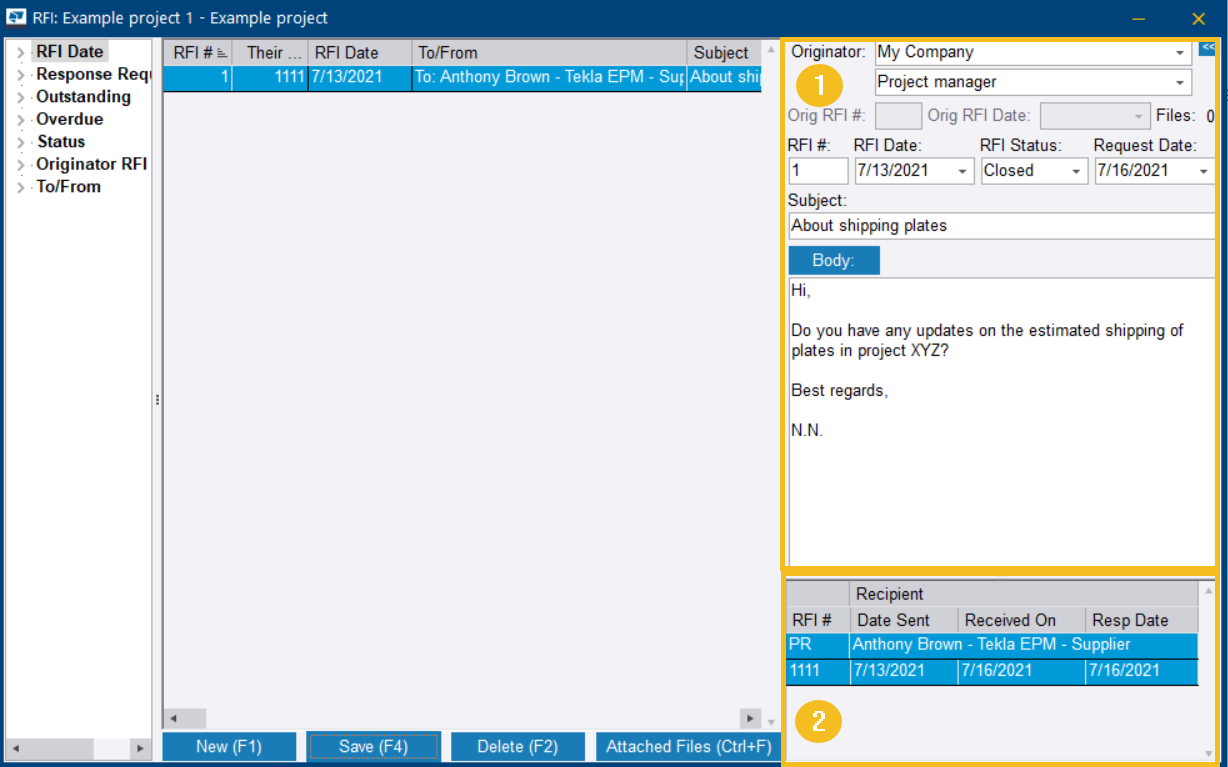
    (1) RFI properties

    (2) Recipient table

  2. Select the requests that you want to send via email.
  3. Click the Request For Information ribbon tab.
  4. On the menu, select Email Selected RFI.

    The Email RFI dialog opens.

    Note that the recipients and attachments defined in the Request For Information are automatically added to the Recipients Included list.

  5. To move additional recipients to the Recipients Included list, click the arrow buttons.
  6. If some of the recipients do not have an email address saved in the Address Book, do the following:
    1. Select the recipient in the Recipients Included list.
    2. Click Contact Details.
    3. Type the email address in the Email Address field.
    4. Click Save.
  7. To include attachments in the email, click the arrow buttons to move attachments to the Attachments Included list.
  8. Select or clear the following checkboxes:

    Option

    Description

    Attach Tekla PowerFab data exchange file When selected, the request information is converted to an XML file, which another Tekla PowerFab user can import to Tekla PowerFab. This can be useful if other parties in the project use Tekla PowerFab as well.
    Show Company Logo (If Exists)

    When selected, your company logo is visible in the request.

    Note that the Show Company Logo (If Exists) checkbox is only available if the Attach PDF export of the RFI checkbox is selected.

    Include Impact Text

    When selected, Tekla PowerFab includes a notice regarding the importance of the requested information and the delay that may be caused if the response is not sent on time.

    Note that the Show Company Logo (If Exists) checkbox is only available if the Attach PDF export of the RFI checkbox is selected.

  9. If necessary, in the Additional Pages field, type the number of pages you want to add to the request for the attachments to be included.
    Note: The Additional Pages field is only available if the Attach PDF export of the RFI checkbox is selected.
  10. In the Author field, type the name of the author.

    If you do not type a name in the Author field, Tekla PowerFab uses the name of your company instead.

    Note that the Author field is only available if the Attach PDF export of the RFI checkbox is selected.

  11. Click Email.
도움이 되었습니까?
전송
이전
다음