Filter information in the Inventory dialog

Tekla PowerFab
変更済み: 10 3月 2026
2026
Tekla PowerFab Tekla PowerFab GO

Filter information in the Inventory dialog

In addition to using the navigation tree for filtering items, you can set and use filters that determine which items are shown in the Inventory dialog.

Note: Using filters only affects the way you see the Inventory dialog, so you cannot accidentally change other users' settings.

If the Open to Filter Selection checkbox has been selected in Maintenance > <Module> > Company Standards, the <Module> Filters dialog opens automatically when you open a job.

If the Open to Filter Selection checkbox has not been selected, open the <Module> Filters dialog as follows:

  1. In the Inventory dialog, click the Inventory ribbon tab.
  2. On the menu, select Filter.

    The <Module> Filters dialog opens.
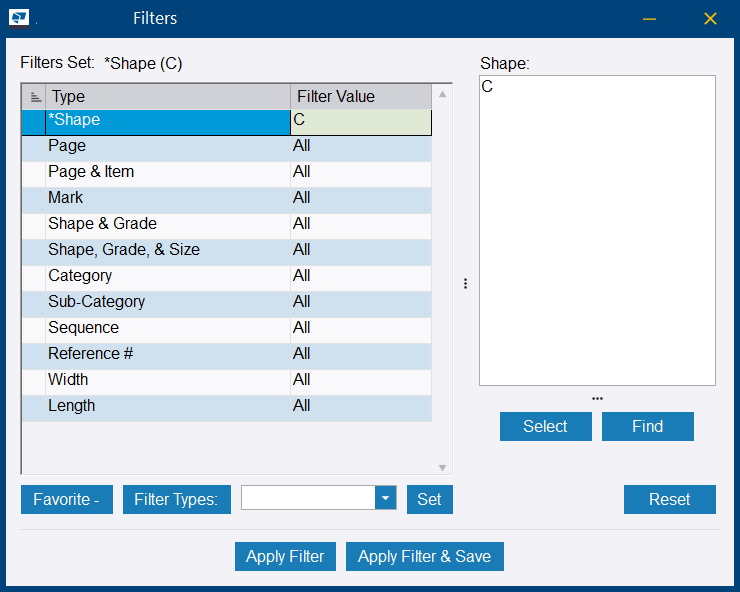
  3. To include only specific types of items, do the following (Optional):
    1. Select a filter type in the Type list, and click Select.

      The Filter dialog opens.

    2. Do one of the following depending on the filter type:
      • Click the arrow buttons to move the items that you want to include to the Included list.
      • Type the maximum and minimum values for the items that you want to include.
    3. Click OK.

      You return to the Filters dialog. The selected filter is highlighted.

      You can apply multiple filters. To clear the active filters, click Reset.

  4. To add a frequently used filter to your favorites, select the desired filter and click Favorite +.

    The favorite filter is flagged with an asterisk and moved to the top of the Type list to facilitate finding it.

    You can also add the Is Favorite column to the dialog. See Customize the layout of a dialog.

    To remove a filter from favorites, select it and click Favorite -

  5. Click Apply Filter or Apply Filter & Save.

The <Module> Filters dialog closes, and the items are filtered according to the settings you made.

To display all information again, click Clear Filters in the upper-left corner.

In the selection dialog, you also have a quick filter with a dropdown menu and search.

To create and save commonly used filters, see Module-wide filters.

役に立ちましたか?
送信
前へ
次へ