Manage labor groups

Tekla PowerFab
変更済み: 18 11月 2024
2025
Tekla PowerFab Tekla PowerFab GO

Manage labor groups

Labor groups define the different labor types being used in an estimating job. All labor times defined in Tekla PowerFab, except for the erection and detailing times, are assigned to a particular labor group.

Tekla PowerFab already contains labor groups for labor types such as cutting, cleaning, or loading. You can view and modify the existing labor groups in the Labor Group Maintenance dialog, or add new ones according to the needs of your shop.

See also Production scheduling.

To access the Labor Group Maintenance dialog, do the following:

  1. Click the Maintenance ribbon tab.
  2. On the menu, select Estimating > Labor Maintenance > Labor Groups.

The Labor Group Maintenance dialog opens.
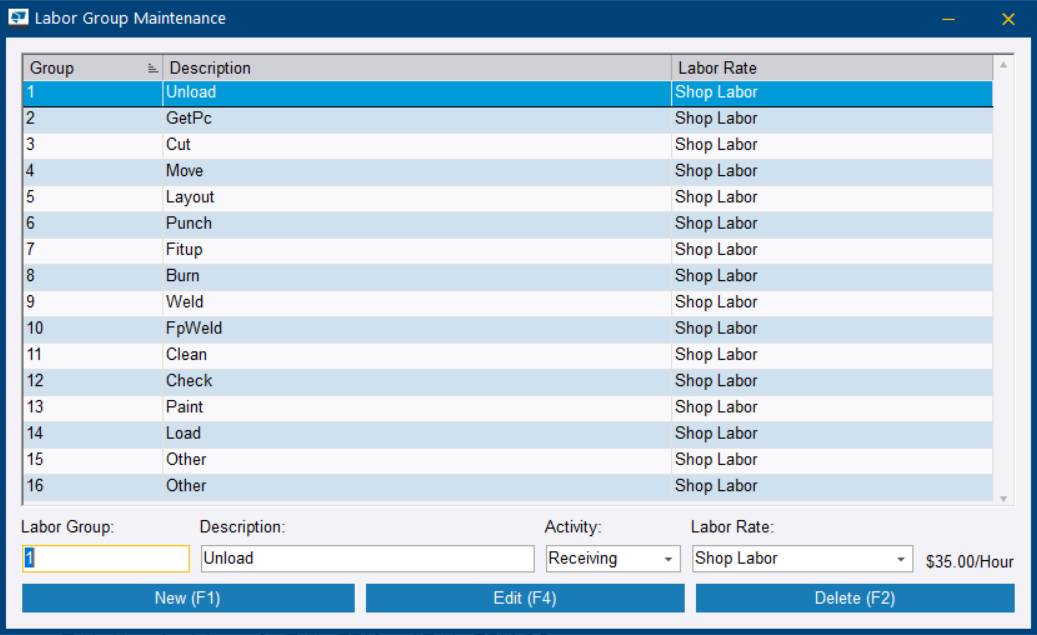
Create a labor group

  1. Click New.
  2. In the Labor Group field, type a number that is not used by any existing labor group.
  3. Type a description for the labor group.
  4. In the Activity list, select which activity the new labor group is associated to.
  5. In the Labor Rate list, select which labor rate the new labor group is associated to.

    The labor rates are created in Fabricator Information. For more information, see Create and modify labor rates.

    The cost of the labor appears on the right side of the Labor Rate list.

  6. Click Add.

The new labor group is created. You can now assign different labor times, such as burn time or manual labor time, to the labor group.

Modify a labor group

  1. Select the labor group that you want to modify.
  2. Modify the labor group number, description, activity, and labor rate according to your needs.
  3. Click Edit to save the changes.

Delete a labor group

Deleting a labor group is permanent and cannot be undone.

  1. Select the labor group that you want to delete.
  2. Click Delete.
  3. To permanently delete the labor group, click Yes in the confirmation dialog.

Modify miscellaneous labor groups

In the Miscellaneous Labor Group dialog, you can determine in which labor group specific operations, such as cleaning or manual labor, are included.
  1. Click the Labor Group Maintenance ribbon tab.
  2. On the menu, select Miscellaneous Labor Groups.
  3. In the available lists in the Miscellaneous Labor Group dialog, select to which labor groups the different labor times are assigned.
  4. Click Save.

View, print, or export the labor group list

  1. Click the Labor Group Maintenance ribbon tab.
  2. On the menu, select Reports, or press Ctrl+R on the keyboard.
  3. In the Report Selection dialog, do any of the following according to your needs:

    To

    Do this

    View the labor group list
    • Click View.
    Print the labor group list
    1. Change the number of printed copies by clicking the + and - buttons.
    2. If necessary, click Select Printer, select which device you want to use for printing, and click OK.

      You can also select Default Printer to always use the default printer with this report, or No Printer to reset the current printer.

    3. Click Print..
    4. Click Yes.
    Export the labor group list
    1. Click Export.
    2. In the Export Format list, select an export format.
    3. To select the location where you want to save the exported file, click Browse.
    4. Browse to the location where you want to save the exported file, and click Save.
    5. You can modify the file name as needed.
    6. To attach the exported file to a Microsoft Outlook email and send it to a recipient, select the Attach to Email checkbox.
    7. To open the file after exporting it, select the Open Exported Document checkbox.
    8. To export the labor group list, click Export.
  4. To close the dialog, click the Close button (X) in the upper-right corner.
役に立ちましたか?
送信
前へ
次へ