
Create automated subcategories in Organizer
You can create an automated subcategory tree structure for one or several custom categories at a time.
Note that the categories for which you create the automated subcategories cannot already have subcategories. If you use an empty category that does not contain any objects yet, only the category rules are saved.
-
You can use the following two methods to define the properties that are used to
create the subcategories:
-
In Object Browser, click
 to enable grouping.
Drag one or more property columns to the grouping row in Object Browser. Organizer uses the properties included in the columns when creating the subcategories, for example, as shown in the image below.
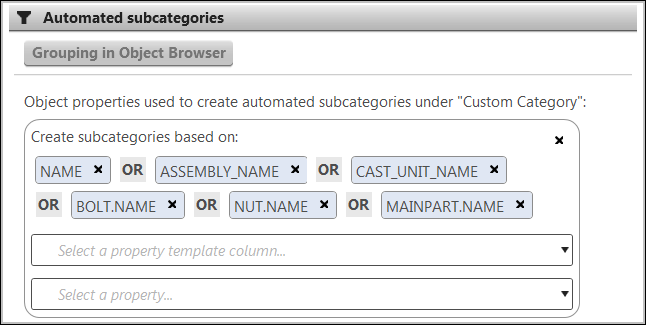
Click Grouping in Object Browser in the category properties dialog. Note that you cannot use the Grouping in Object Browser option if you first add property template columns or object properties to the rule boxes.
-
You can also add property template columns or object properties to the rules by selecting them from the lists in the category rule boxes.
Click the rule boxes and select a property template column or an object property.
You can also type the name of the property in the box, for example,
PROFILEand press Enter. You can add more than one column or property to the same rule box.
Organizer adds a new subcategory level to the properties dialog when you have added a column or a property to the rule box.
-
Tip:
You can manually add categories and subcategories to automated categories. Select a category, right-click and select New category or New subcategory. Manually added categories are not deleted at synchronization. When you synchronize a manually created subcategory, only that category is synchronized.