
Manage an on-premises sharing service for Tekla Model Sharing
Management tasks include reconfiguring or upgrading the on-premises sharing service, upgrading the database schema, backing up and restoring data, and moving the service to a new server.
Change the configuration of the on-premises sharing service for Tekla Model Sharing
If you need to change the settings for the on-premises sharing service for Tekla Model Sharing after installation, you can run the TeklaModelSharingService.exe installer again at any time.
-
Run the TeklaModelSharingService.exe installer in one of
these ways:
- If your Windows account has administrator permissions, double-click the TeklaModelSharingService.exe installation file.
- If your Windows account does not have administrator permissions, right-click the TeklaModelSharingService.exe installation file, then select Run as administrator.
- When the installer starts, select Repair.
- Follow the steps in the installer to change the settings.
If you changed the location of the model data folder, move the previous model data to the new location.
Upgrade the Tekla Model Sharing On-Premises server to a new version
Once a year, a new version of the Tekla Model Sharing On-Premises server is released and the previous version expires. To continue using the on-premises sharing service with your ongoing Tekla Model Sharing projects, and to use the service with the latest version of Tekla Structures, you must upgrade the server.
Six months before the current version of the Tekla Model Sharing On-Premises server expires, the server writes the following warning in the Windows Event Log:
This on-premises server version stops working {DATE}. Download and install the new version when it becomes available.After the version expires, the on-premises server will not start and it writes the following error message in the Windows Event Log:
This on-premises server version is no more working after {DATE}. Download and install the new version.If you are installing Tekla Model Sharing On-Premises server for the first time, do not follow these steps. See Install an on-premises sharing service for Tekla Model Sharing.
If the database schema has changed, you must also upgrade the database schema.
Upgrade the database schema for Tekla Model Sharing On-Premises server
Upgrade the database schema when the database schema changes.
If you are installing Tekla Model Sharing On-Premises server for the first time, do not follow these steps. See Install an on-premises sharing service for Tekla Model Sharing.
Back up and restore data
We recommend that you back up the data regularly, for example, daily. Ensure that your data is backed up before you begin any software or hardware upgrade process, such as upgrading the on-premises sharing service for Tekla Model Sharing version or the SQL database.
The on-premises sharing service for Tekla Model Sharing uses the SQL database for the bookkeeping of shared models. The model data is stored in the file folders in Windows.
The database name and the path for model data settings are in the service configuration file TmsConfiguration.xml in ..\ProgramData\Tekla\ModelSharing\v3\:
-
DsConnectionString is the name of the database
-
DsStorageFolder is the storage for the model data
For best practices for SQL Server database backups, see Back Up and Restore of SQL Server Databases on the Microsoft website.
-
To back up the SQL database
and the related file folders:
-
To restore a backup:
- Stop the on-premises sharing service for Tekla Model Sharing.
- Restore the backup of the SQL Server database.
- Restore the related file folders.
- Start the on-premises sharing service for Tekla Model Sharing.
Move the on-premises sharing service for Tekla Model Sharing to a new server
To move the on-premises sharing service for Tekla Model Sharing to a new server without data loss, you must back up both the SQL database and the model data folders, and manage the user transition.
Warning: The
Tekla Model Sharing 3 Windows Service must be stopped
and disabled on the old server machine while you are moving to the new
server machine. Users must not make any changes to models or data on the old
server during or after the server move.
-
If the new server name is
different from the old server name, users must follow these steps to connect
to the on-premises sharing service for Tekla Model Sharing on the new server:
-
Change the server name between the
<ServerName>and</ServerName>tags to the new server name.This example shows a ModelSharingService.key file with the old server name highlighted:
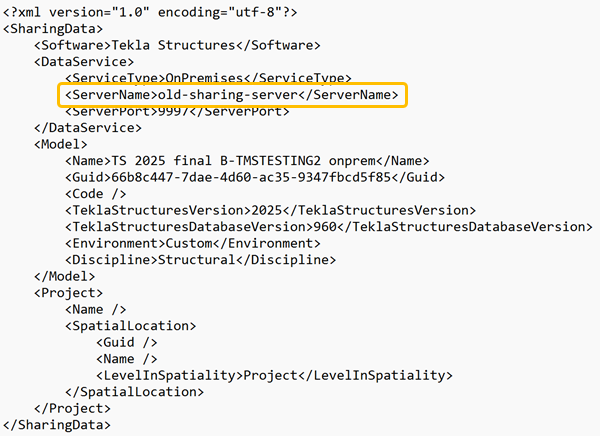
This example shows a ModelSharingService.key file with the new server name highlighted: :
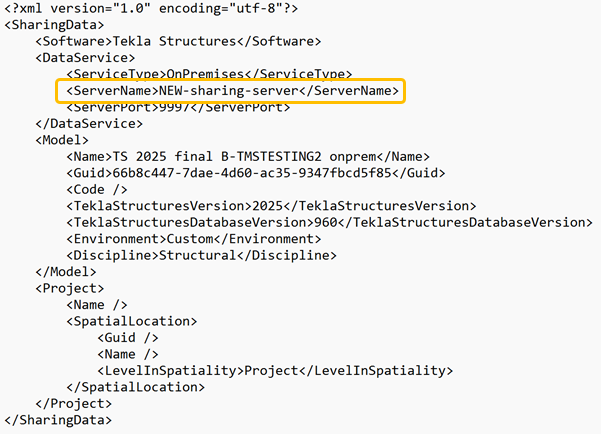
If the server name has not changed, users can continue to use the same local copies that they used before the server move.
-
Change the server name between the