
Trimble ProjectSight: Manage projects
You can enable ProjectSight as the primary project management solution in Tekla PowerFab.
When you have enabled ProjectSight in Tekla PowerFab, you can launch ProjectSight directly from Tekla PowerFab when working with RFIs, transmittals, change orders, and task lists.
You can also publish drawings and their revisions from Tekla PowerFab ProjectSight.
Note:
- Before you start, you must have a portfolio and project in ProjectSight.
- You need to buy a ProjectSight license to use it.
For more details on ProjectSight, see ProjectSight documentation.
Enable ProjectSight
To be able to launch ProjectSight from Tekla PowerFab and use the functionalities, you must first enable ProjectSight and select the functionalities that you want to use.
-
Go to
.
The Trimble ProjectSight Settings dialog opens.
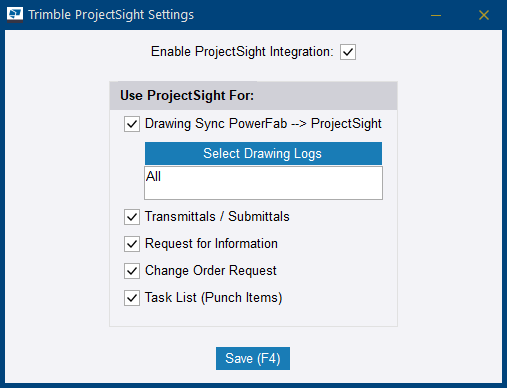
If there are no existing transmittals, RFIs, change orders, or tasks for the project in Tekla PowerFab, ProjectSight becomes the default project management tool. Transmittals, RFIs, change orders, and tasks are not synced between Tekla PowerFab ProjectSight.
You can use the enabled ProjectSight functionalities via the Project Management module in Tekla PowerFab.
Link a project to ProjectSight
To synchronize project data, you must link a Tekla PowerFab project management job to a ProjectSight project.
Note: Before you start, you must have a
portfolio and project in ProjectSight to link to.
-
Click Link
Project.
The Tekla PowerFab project is linked to the ProjectSight project.
You can access the ProjectSight project by clicking Open.

Publish drawings to ProjectSight
You can publish new drawings and revisions from Tekla PowerFab to ProjectSight to ensure that ProjectSight contains the latest versions of your drawings as managed in Tekla PowerFab.
When you import drawings into Tekla PowerFab using any other method than a Production Control import, you can sync the changes implemented in Tekla PowerFab either manually or automatically. For the automatic sync you need to create an automated event.
The first synchronization publishes the latest revision of all existing drawings. Subsequent syncs publish drawings and revisions that have been added or changed since the last synchronization.
The system maps your drawing log names in Tekla PowerFab to a group ID in ProjectSight, creating new groups in ProjectSight to match your Tekla PowerFab structure.
Before you start:
- Ensure that you have ProjectSight enabled
- Ensure that you have selected Drawing Sync PowerFab → ProjectSight and the drawing log types you want to sync.
To synchronize drawings added manually or imported from other integrations, do either of the following:
-
To sync drawings automatically, create an automated event.
-
To sync drawings manually, do the following:
You receive an email from ProjectSight indicating that the drawings have been published to ProjectSight.
Launch ProjectSight and display drawings, transmittals, RFIs, change orders, and tasks
You can launch drawings, transmittals, RFIs, change orders, and tasks from Tekla PowerFab to open them in ProjectSight.
If there are no existing drawings, transmittals, RFIs, change orders, or tasks, ProjectSight opens automatically when you click the respective button. Otherwise, you can select to open them either in Tekla PowerFab or ProjectSight.
Before you start, note the following:- You must have selected the ProjectSight functionalities that you want to enable in Trimble ProjectSight Settings. See Enable ProjectSight above.
- Your Tekla PowerFab project is linked to ProjectSight. See Link a project to ProjectSight above.